
RESOURCE RECORD
VERSION 26.08.2026Zenzefi Certificates - After-Sales PKCS#12 Bundle for XENTRY / Passthru Connectivity 26.08.2026
After-Sales PKCS#12 certificate-bundle reference for Mercedes XENTRY/OpenShell and Passthru connectivity, with Windows import instructions and documented expiry dates.
Categories
Vehicle references
Overview
Description
Zenzefi Certificates is an After-Sales certificate bundle in PKCS#12 (.P12) format for Daimler/Mercedes diagnostic applications, including XENTRY OpenShell, XENTRY Passthru, online add-ons and content-delivery services. Its documented purpose is to refresh client and intermediate certificates as they approach expiry, allowing an appropriately configured and authorized application to establish secure HTTPS/TLS sessions with the relevant backend services.
The original description covers the 12.2025 package. The latest documented bundle is identified as 26.08.2026, which is its stated certificate-expiry date. That validity date has passed. This record retains the documented package information and installation workflow; it does not establish that these certificates remain accepted by current backend services. The illustrations below show earlier examples and retain their original dates.
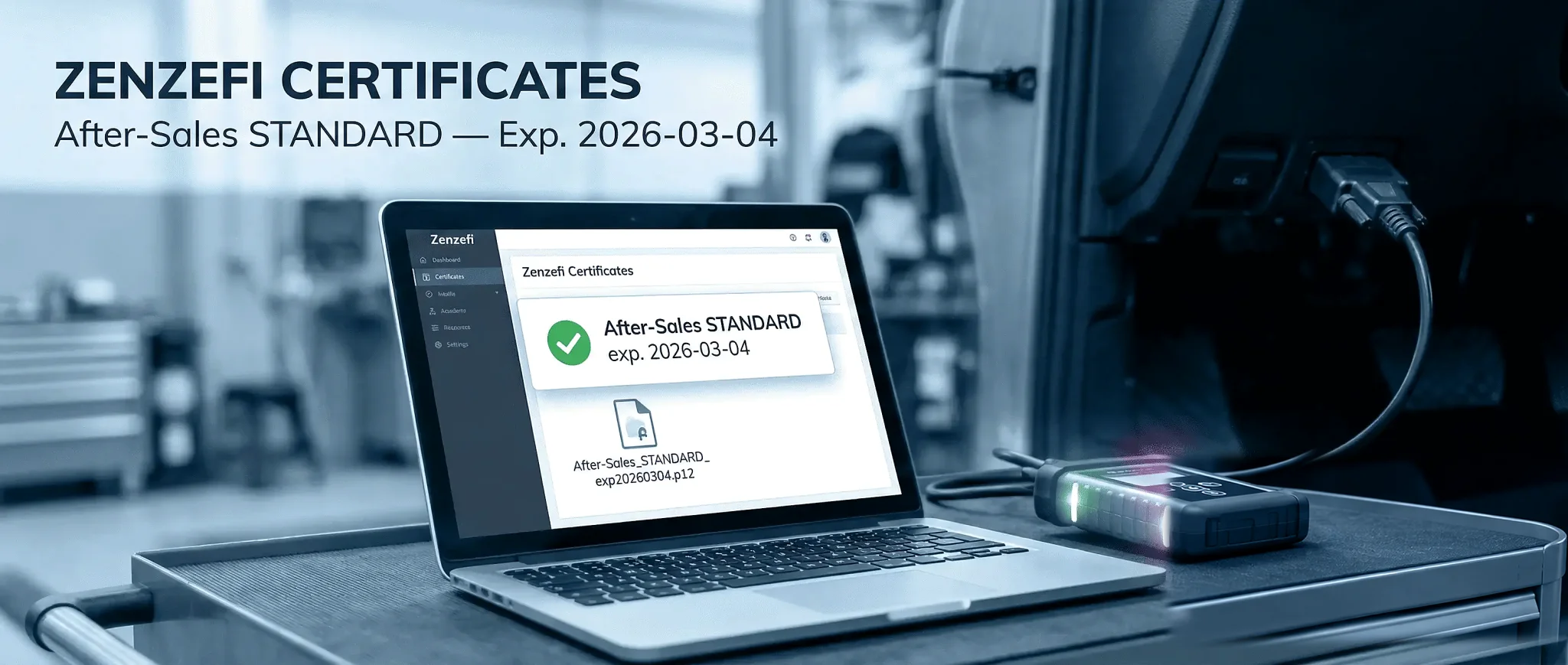
Included sample file (as seen on the screenshot)
After_Sales_STANDARD_12.2025.p12— a PKCS#12 certificate container.
Typical use cases
- Resolve XENTRY messages indicating that a valid certificate or authorization is missing.
- Restore access to online content downloads and metadata updates.
- Maintain HTTPS/TLS communication between Passthru installations and after-sales service endpoints.
How to install (manual import, Windows)
- Open certmgr.msc, or launch the Windows Certificate Import Wizard.
- Select Current User, the recommended scope, then open the Personal store and choose Import.
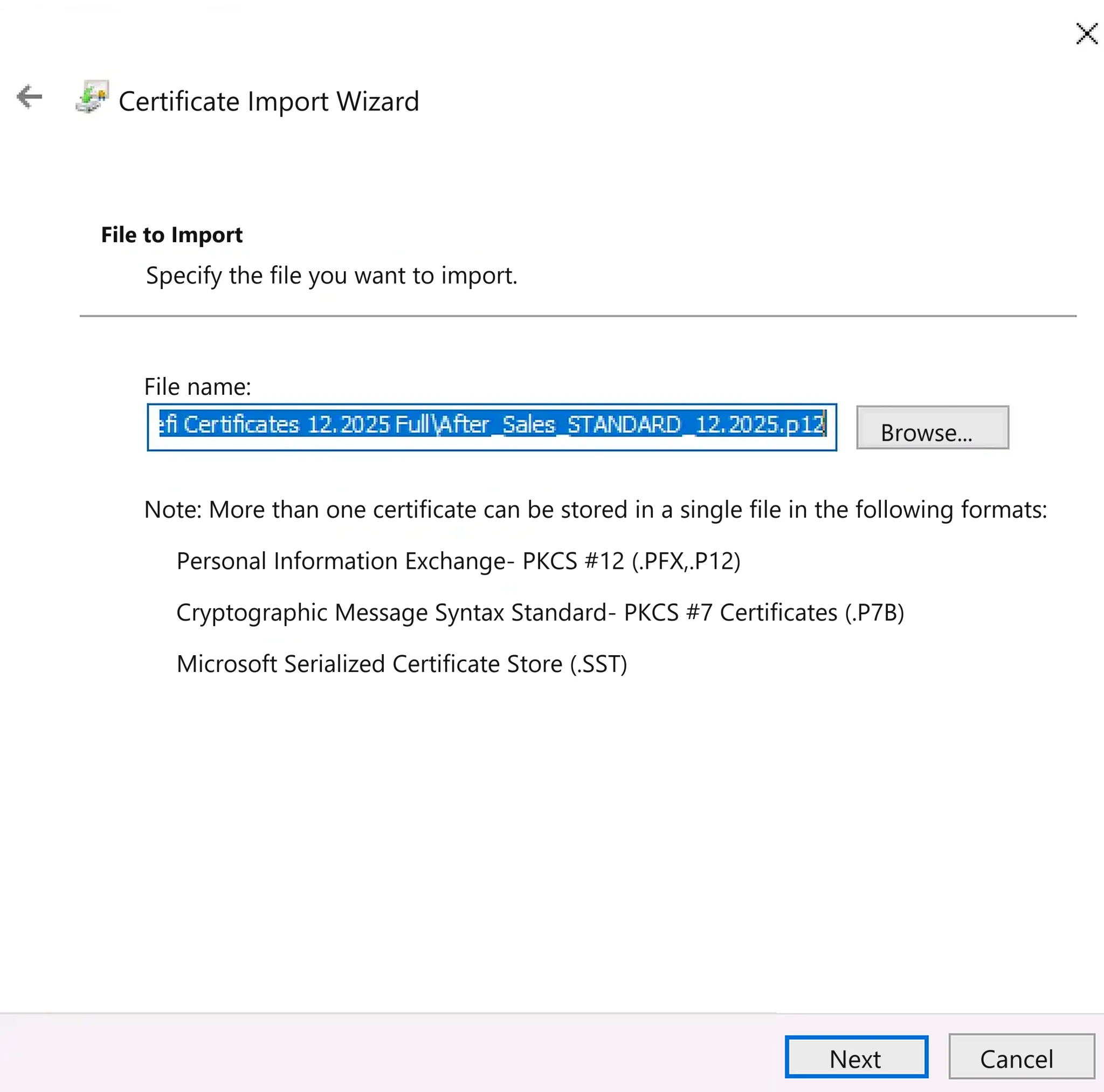
- Choose After_Sales_STANDARD_12.2025.p12 and continue with Next.
- Enter the certificate password if requested, and keep Include all extended properties selected.
- Complete the wizard, then check that the imported certificate is listed under Personal → Certificates.
- Check that the root and intermediate certificates are available in Trusted Root and Intermediate Certification Authorities.
If any required chain certificates are missing, import them into the appropriate stores according to the supplied package instructions. - Restart Windows or the XENTRY-related services, then check the connection.
Notes & good practice
- Use Current User for the import unless your environment policy specifies Local Computer.
- Avoid unnecessary changes to store permissions, and keep private keys non-exportable in production environments.
- Ensure that the Windows date, time and time zone are correct, as TLS validation depends on accurate time synchronization.
Compatibility
- Intended for Windows 10/11 (64-bit); maintained Windows 7 and 8.1 systems are also documented as compatible.
- The documented test environment is Windows 10 LTSC 2019. The certificate files require negligible hardware resources.
Minimum system
• CPU: 1 GHz or faster • RAM: 2 GB • Disk: less than 50 MB free • Internet connectivity for online services.
Disclaimer
This article outlines certificate installation for legitimate after-sales service work. Use the certificates only with properly licensed software and in compliance with applicable laws and organizational policies. Referenced files may be available through public listings or third-party uploads; this article does not host or modify them. Proceed with appropriate care and always retain backups.
Technical Compatibility
Operating Systems
System Requirements
- Windows 10/11 (64-bit); maintained Windows 7/8.1 also documented
- Documented test environment: Windows 10 LTSC 2019
- 1 GHz or faster CPU
- 2 GB RAM
- Less than 50 MB free space stated for certificate material
- Internet access for online services
- Properly licensed XENTRY/OpenShell or Passthru environment and valid authorized certificates
Screenshots
Related Software
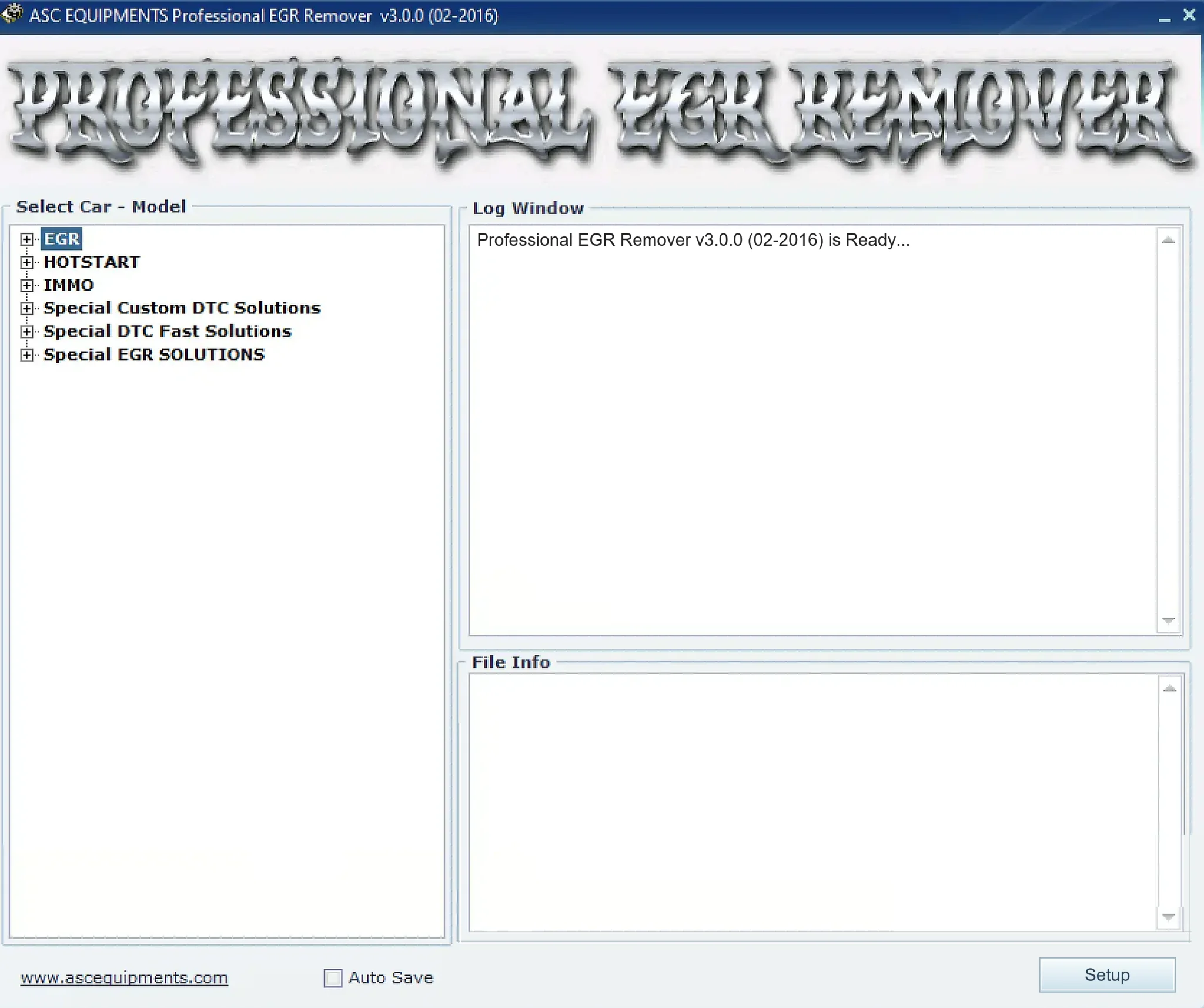
Windows calibration-file utility with manufacturer and ECU selection menus for EGR, flap, Hotstart, DTC and related service functions.
Detroit Diesel Diagnostic Link (DDDL) Full Suite 6.5 / 8.19 / DRS 6.31
v6.5 / 8.19 / DRS 6.31Detroit Diesel and Mercedes-Benz MBE workshop suite combining DDDL legacy and modern diagnostics, DRS reprogramming, live data, service tests and parameter functions.
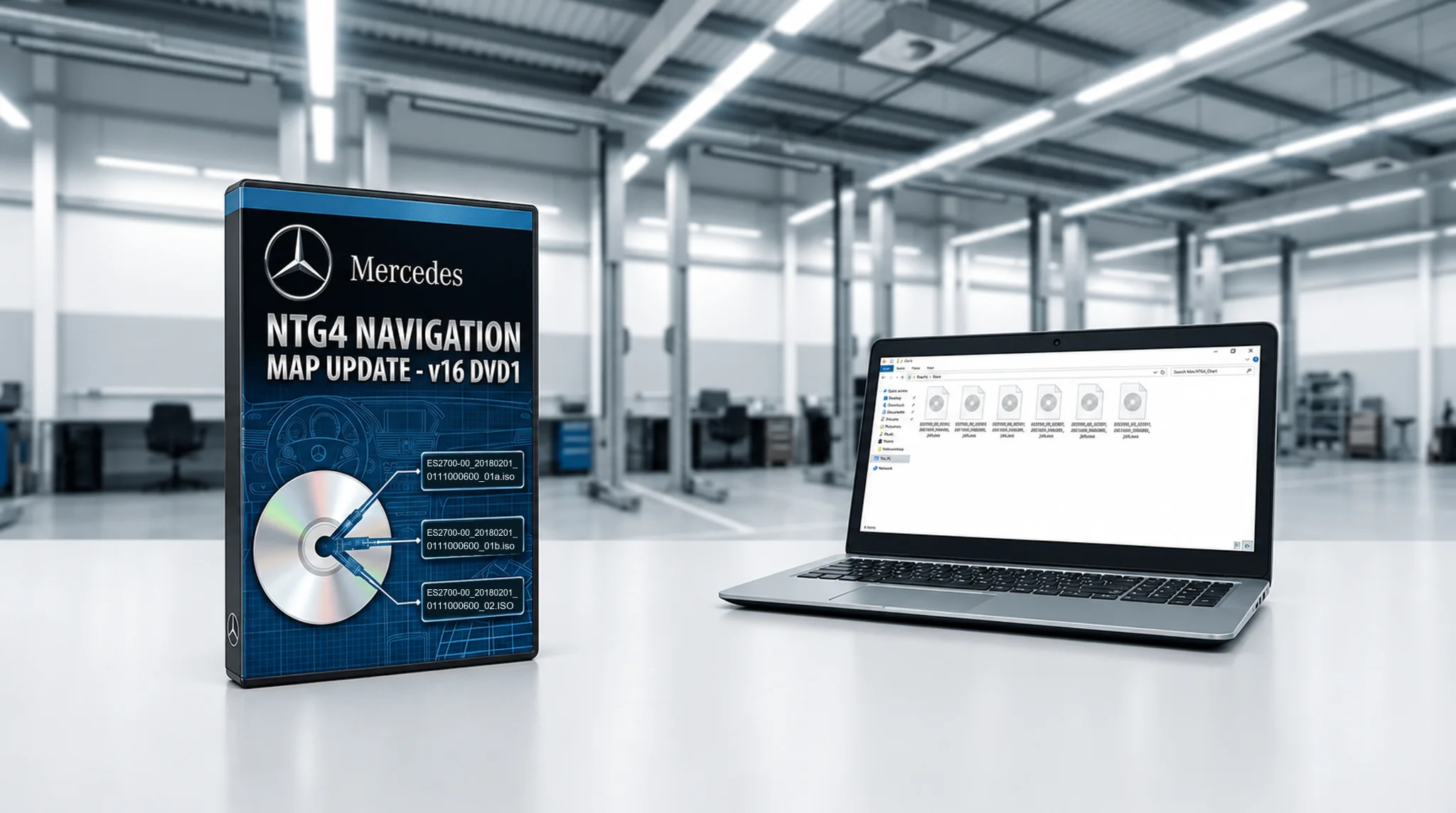
NTG4 v16 DVD1 split ISO package for preparing navigation map media for compatible Mercedes-Benz infotainment systems, with three original image filenames and media-handling guidance.

Mercedes-Benz telematics service disc image 2218270100.nrg for supported COMAND update workflows, with vehicle and head-unit applicability confirmed by VIN and the diagnostic prompt.
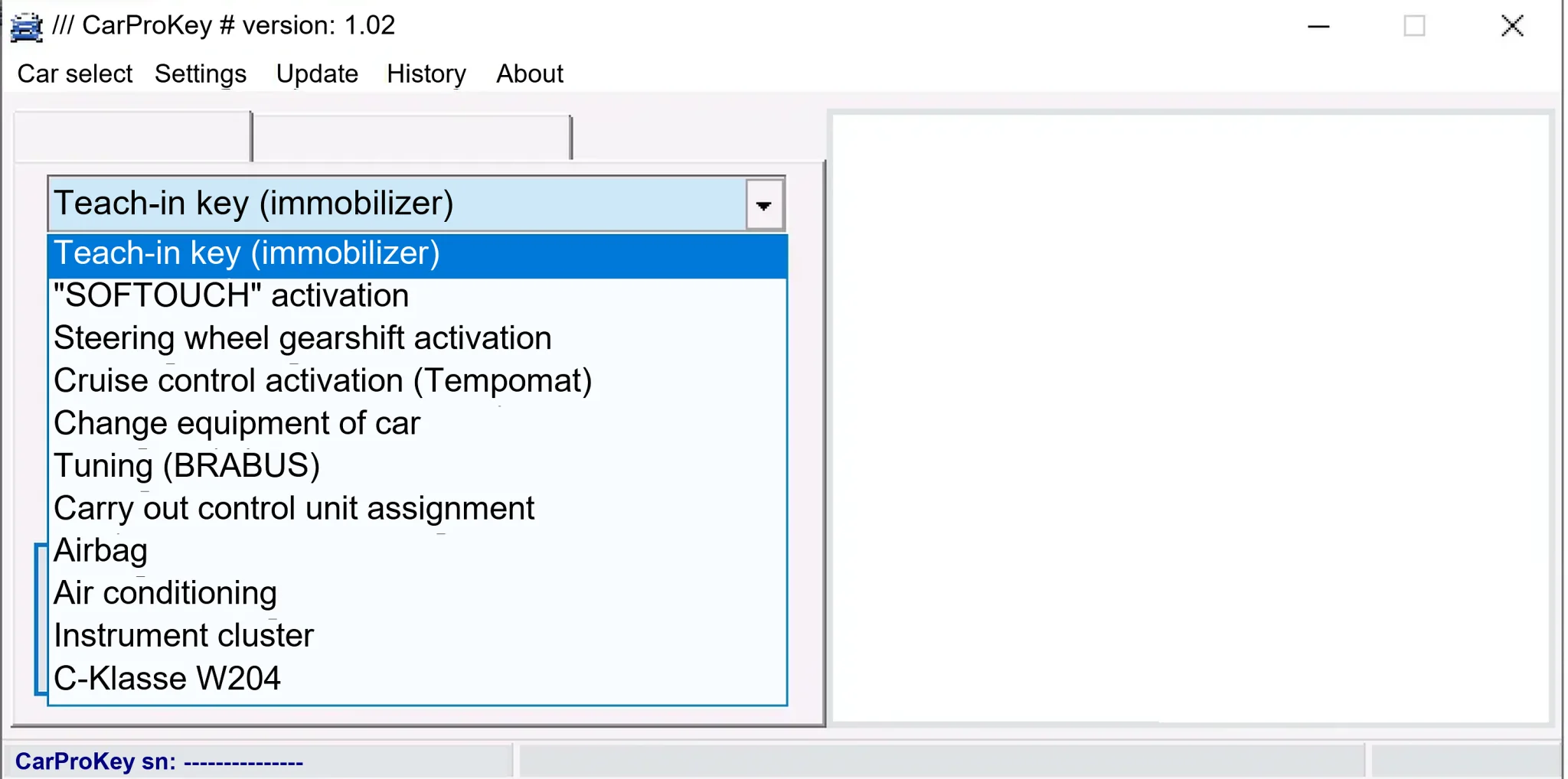
Windows service helper for selected Mercedes, Smart and Nissan Infiniti workflows, including authorized key teach-in, option coding and control-unit assignment.
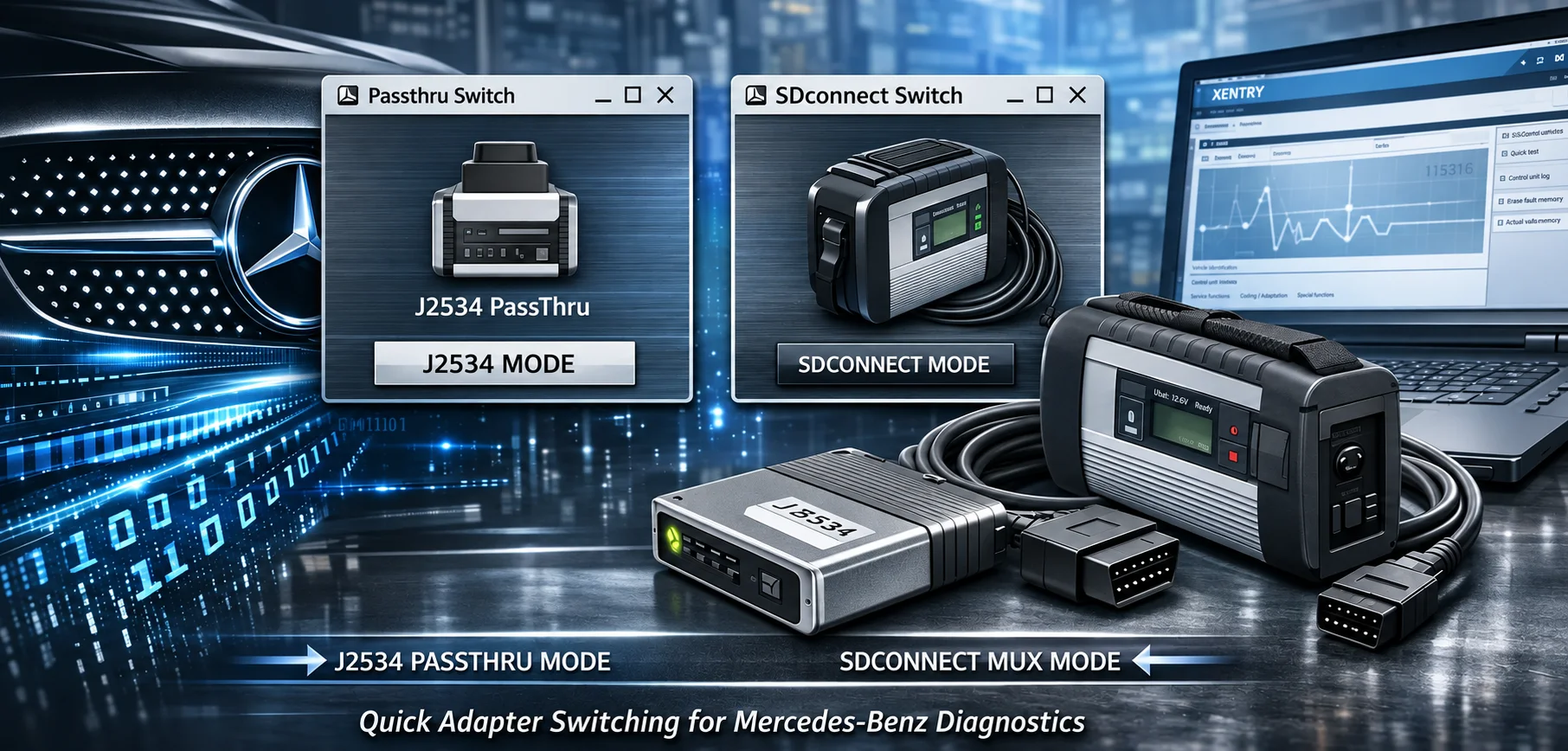
Lightweight Windows helpers for switching Xentry and DAS workstations between J2534 PassThru and SDconnect MUX communication profiles.