
SOFTWARE DATABASE / RELEASE RECORD
VERSION 2025.11Passthru SDconnect Switch Tool for Xentry Connection Mode 2025.11
Lightweight Windows helpers for switching Xentry and DAS workstations between J2534 PassThru and SDconnect MUX communication profiles.
Categories
Vehicle references
Overview
Passthru SDconnect Switch Tool is a lightweight helper for Mercedes-Benz diagnostic workstations that need to alternate between J2534 PassThru and SDconnect (MUX) communication. It is intended for workshop PCs running Xentry and DAS, where the selected adapter can be determined by registry profiles and local configuration files.
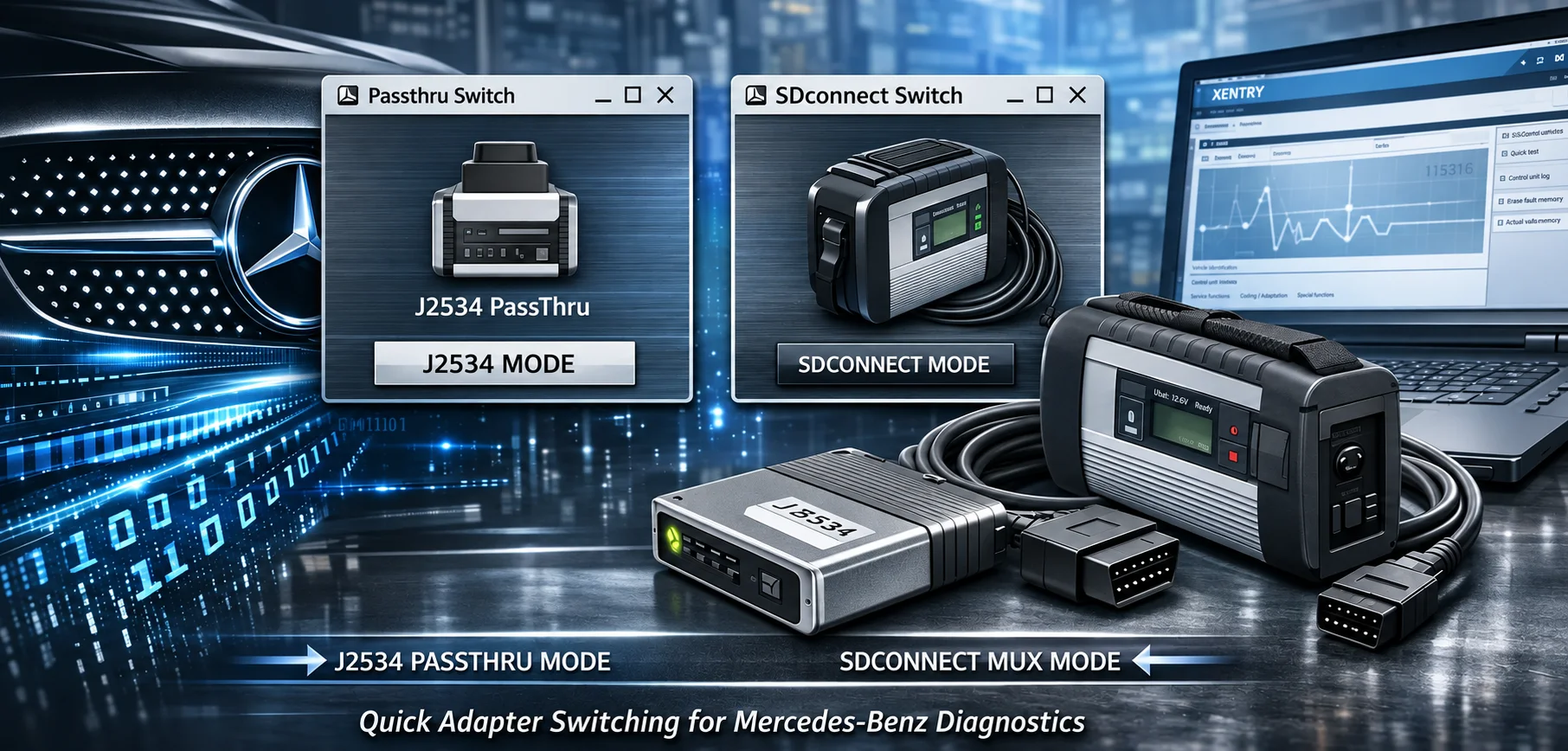
In typical installations, the switch performs its task quickly and then closes without presenting a complete user interface. It may apply predefined configuration profiles and registry values, including Xentry-side profiles such as XPT and XDOS on some systems, so that Xentry starts with the intended interface mode.
Highlights
- Provides two dedicated switch executables for quick selection of the required mode.
- Switches the Xentry communication configuration between PassThru and SDconnect.
- Supports workshop benches that use a mixture of diagnostic adapters and drivers.
- Reduces the need for manual Xentry configuration before diagnostic work.
- Functions as a small add-on that is easy to keep with other service utilities.
Package contents
Passthru Switch.exeSDconnect Switch.exe
Compatibility notes
- Intended for Mercedes-Benz Xentry and DAS setups whose interface mode is governed by local configuration and registry settings.
- Behavior differs according to the Xentry version, installed drivers and adapter type.
- Some systems require administrator privileges before registry changes can be applied.
- Xentry may need to be restarted, and certain setups may require a Windows reboot, before the change takes effect.
Basic usage
- Exit Xentry and DAS if either application is running.
- Run
Passthru Switch.exeto select J2534 PassThru mode, orSDconnect Switch.exeto select SDconnect MUX mode. - Open Xentry and check its connection mode or interface selection.
- If the interface is not detected, check the adapter drivers and repeat the switch with administrator privileges.
Operating systems
- Windows PC environments with Xentry and DAS installed.
Minimum system requirements
- CPU: Any modern dual-core processor or better.
- RAM: At least 2 GB; 4 GB recommended.
- Storage: Less than 10 MB of free space.
- Network: Not needed for switching.
- Admin rights: Recommended for reliable registry-write access.
Disclaimer
- No affiliation: Product names and trademarks remain the property of their respective owners.
- Licensing: Use only with properly licensed diagnostic software and comply with local law.
- Safety: Diagnostic work and configuration changes can affect vehicle systems. Use is intended for qualified personnel and is undertaken at the user's own risk.
Technical Compatibility
Operating Systems
System Requirements
- Windows PC with Xentry and DAS installed
- CPU: Any modern dual-core processor or better
- RAM: 2 GB minimum, 4 GB recommended
- Storage: Under 10 MB free
- Network: Not required for switching
- Administrator rights: Recommended for reliable registry write access
Screenshots
Related Software
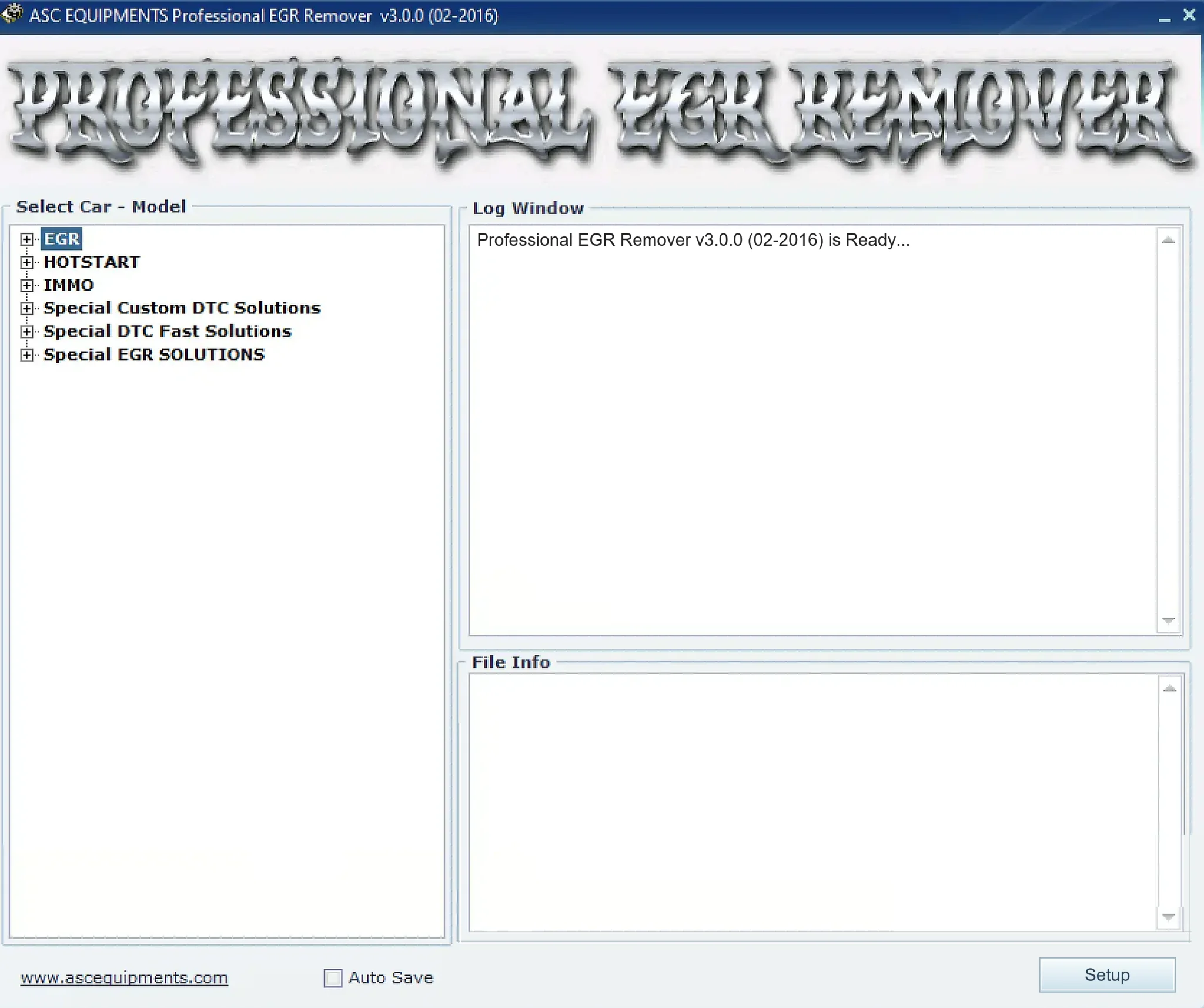
Windows calibration-file utility with manufacturer and ECU selection menus for EGR, flap, Hotstart, DTC and related service functions.

Detroit Diesel Diagnostic Link (DDDL) Full Suite 6.5 / 8.19 / DRS 6.31
v6.5 / 8.19 / DRS 6.31Detroit Diesel and Mercedes-Benz MBE workshop suite combining DDDL legacy and modern diagnostics, DRS reprogramming, live data, service tests and parameter functions.
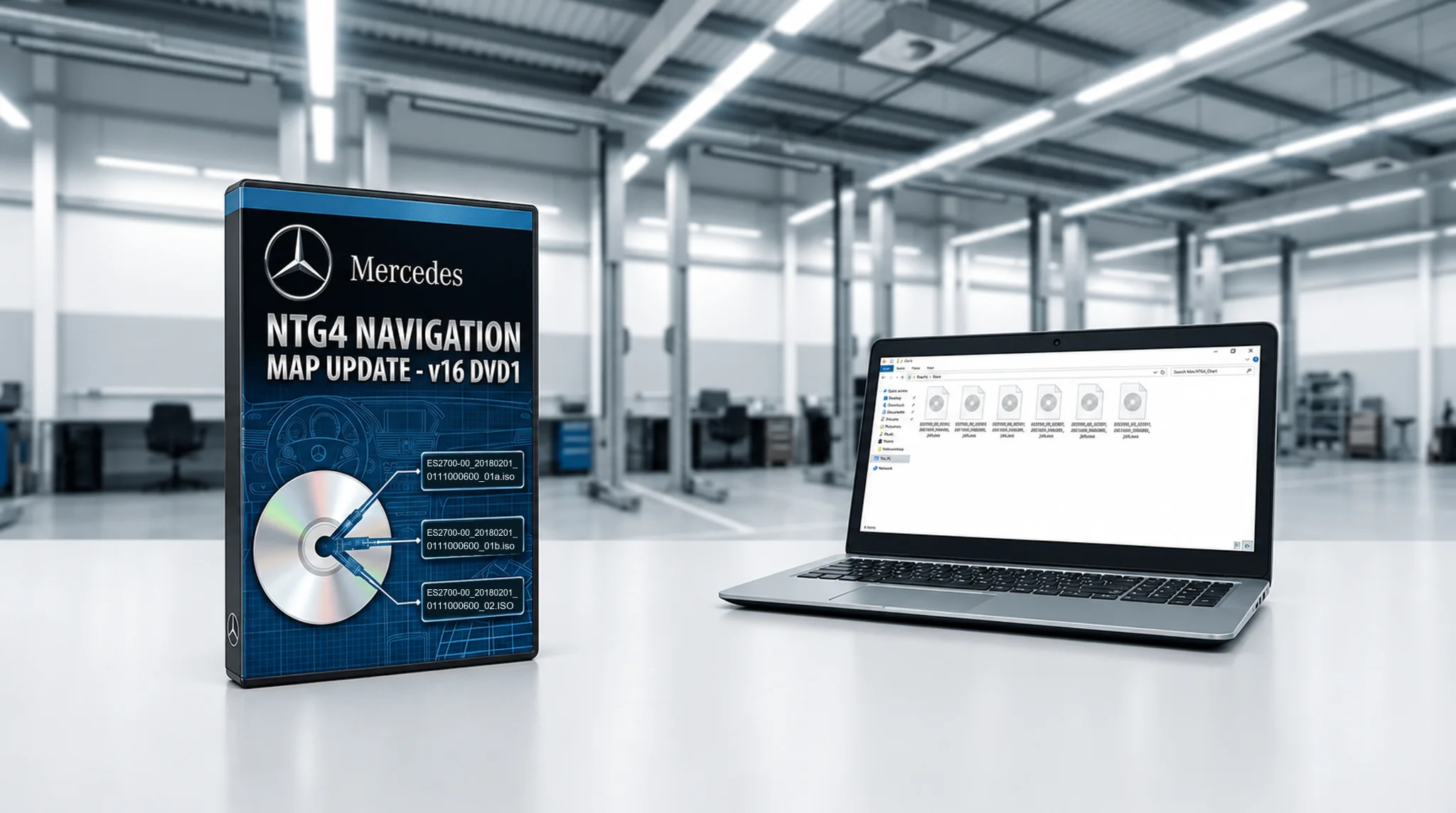
NTG4 v16 DVD1 split ISO package for preparing navigation map media for compatible Mercedes-Benz infotainment systems, with three original image filenames and media-handling guidance.

Mercedes-Benz telematics service disc image 2218270100.nrg for supported COMAND update workflows, with vehicle and head-unit applicability confirmed by VIN and the diagnostic prompt.
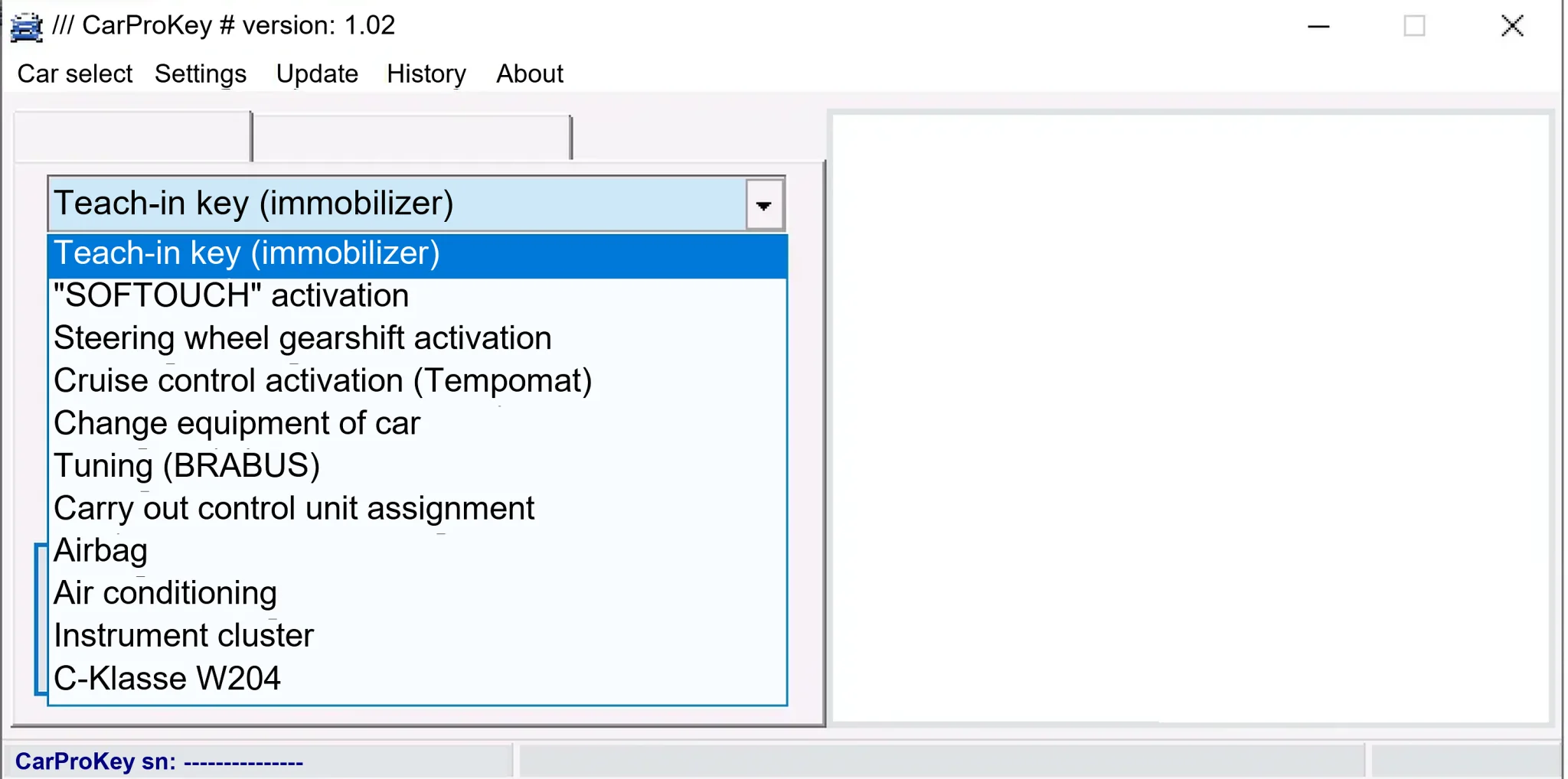
Windows service helper for selected Mercedes, Smart and Nissan Infiniti workflows, including authorized key teach-in, option coding and control-unit assignment.
Restores SDconnect equipment selection in XDOS OpenShell Xentry environments from 03.2024 onward, with wireless integration paths for Vediamo and DAS standalone.