
SOFTWARE DATABASE / RELEASE RECORD
VERSION 2.1.16.1SDconnect Toolkit for XDOS OpenShell (Xentry) - Wireless Control 2.1.16.1
Restores SDconnect equipment selection in XDOS OpenShell Xentry environments from 03.2024 onward, with wireless integration paths for Vediamo and DAS standalone.
Categories
Vehicle references
Overview
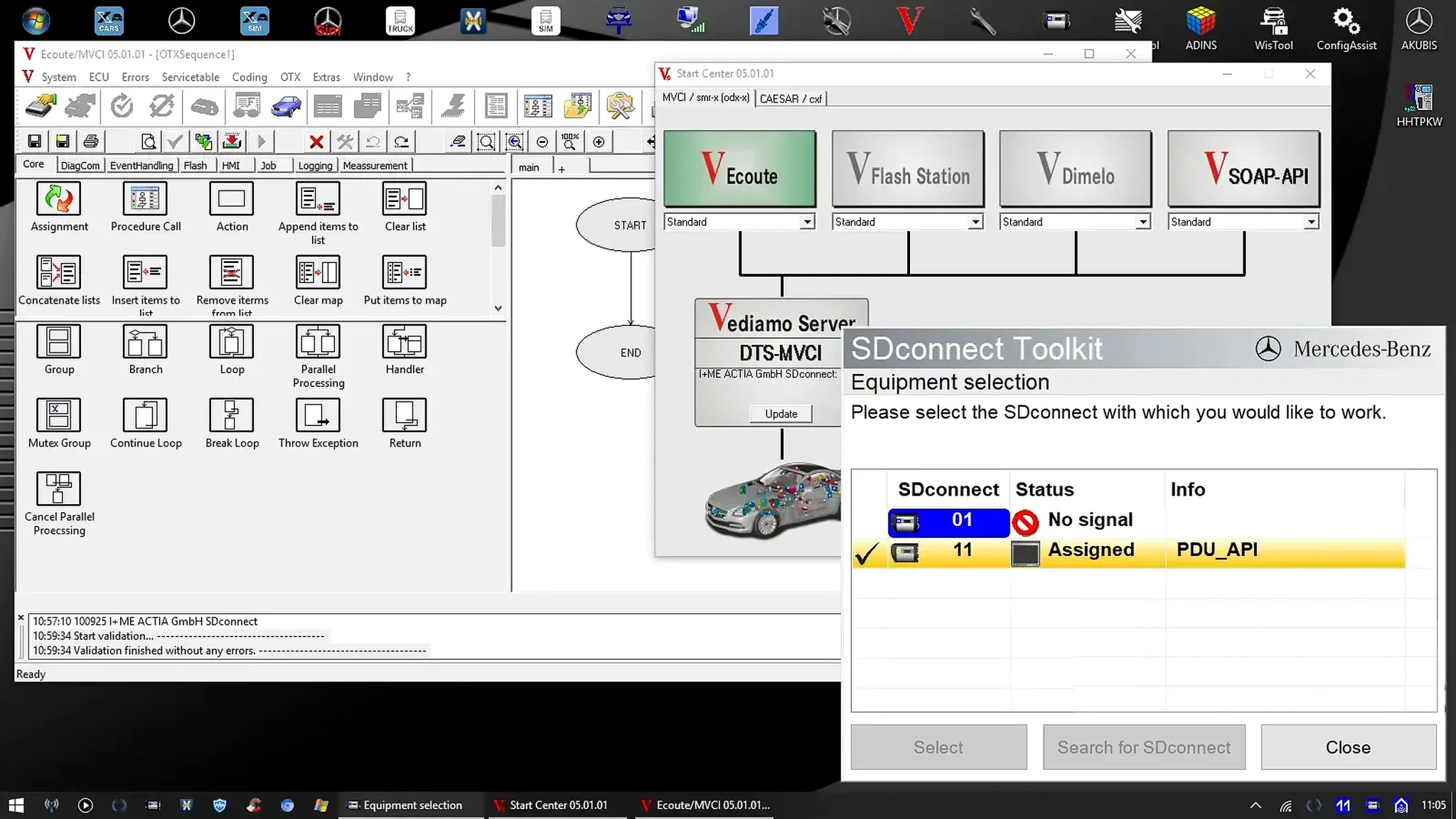
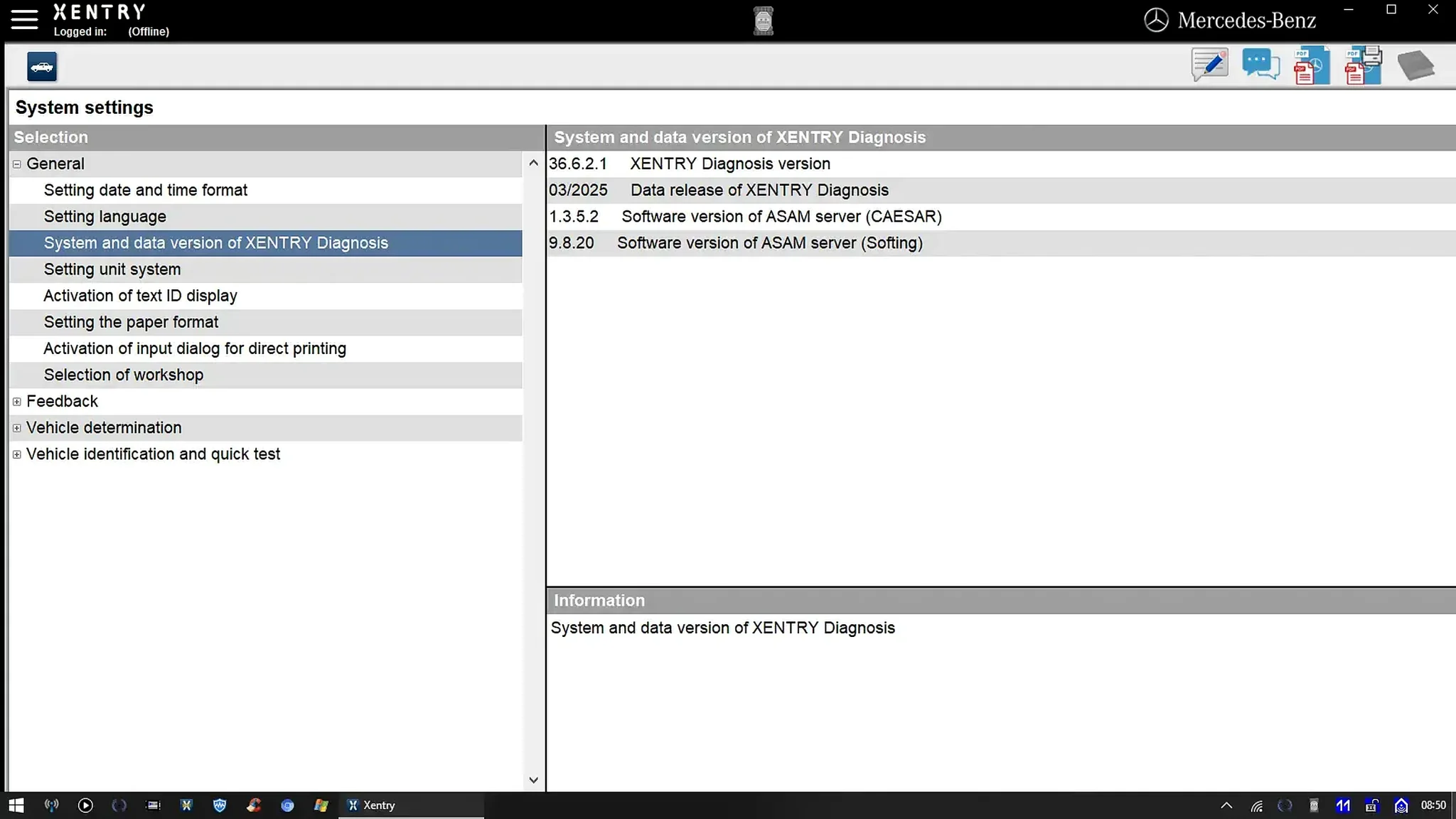
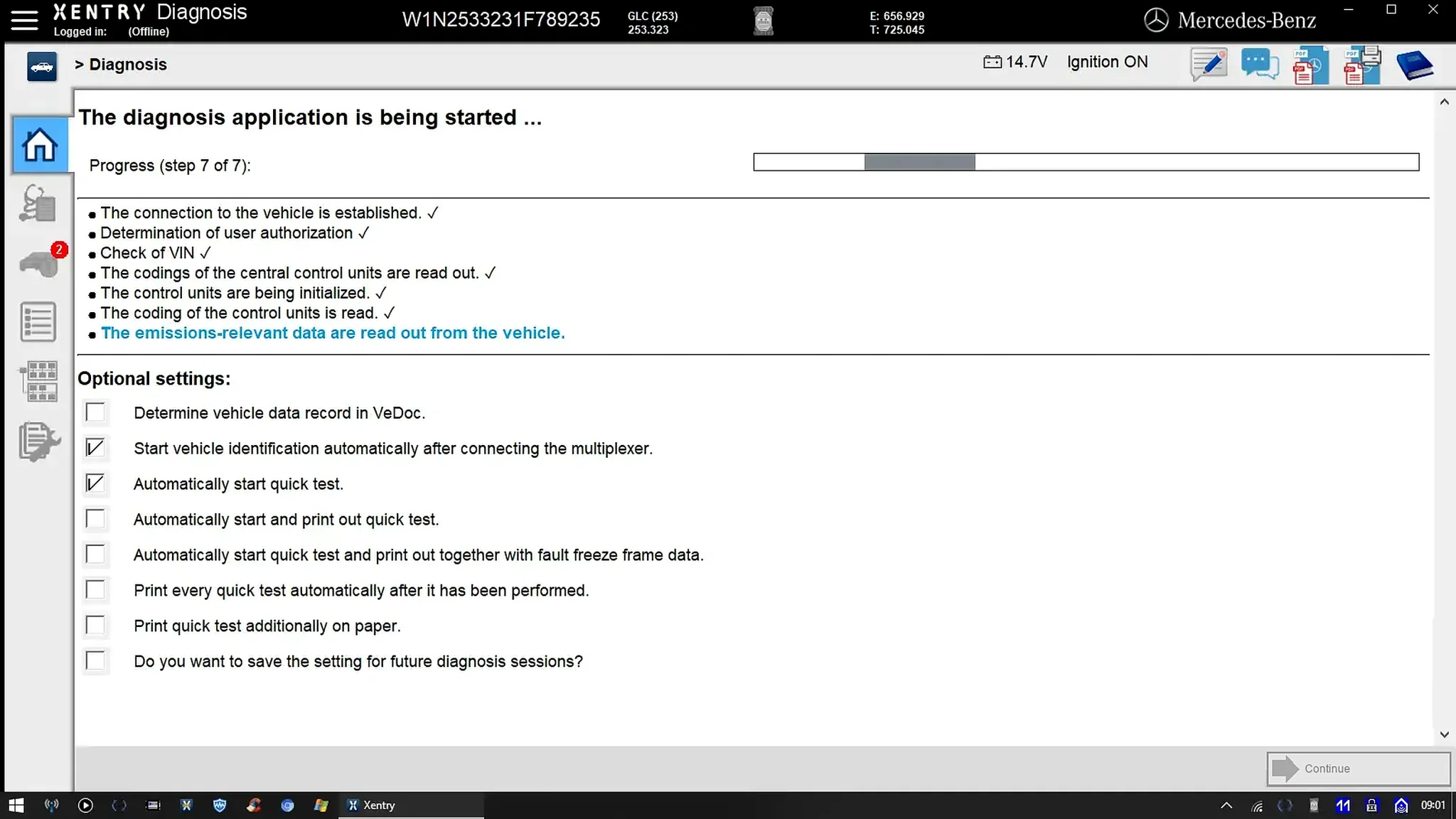
SDconnect Toolkit restores the Toolkit component when it is absent from a newer XDOS OpenShell installation. This compact workshop add-on is intended for XDOS-based Xentry environments from 03.2024 onward that no longer include the component by default, bringing SDconnect equipment selection and its associated functions back into the diagnostic workflow.
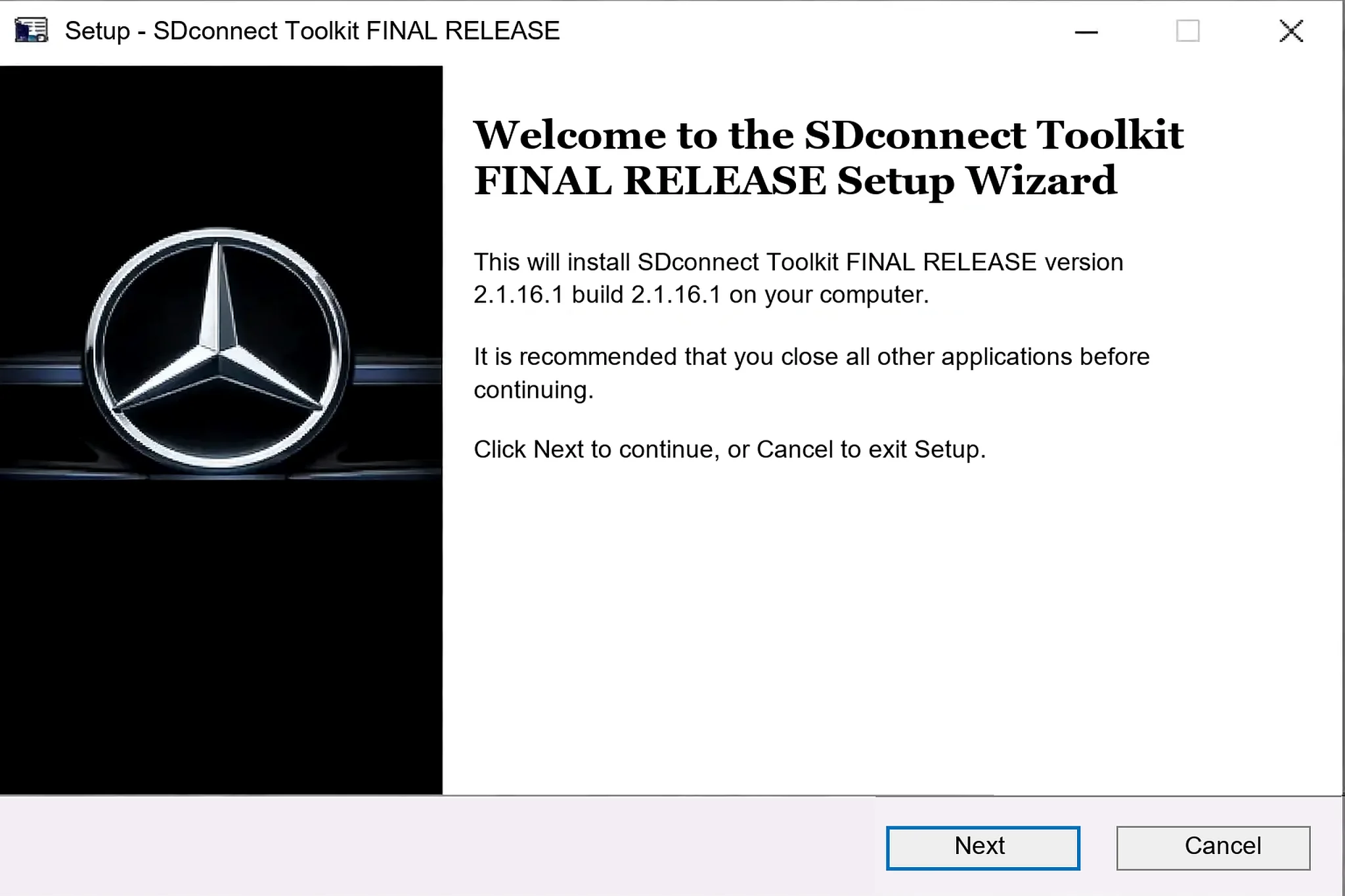
This package contains SDconnect Toolkit 2.1.16.1, with integration paths for wireless control through Vediamo and DAS standalone. The required local corrections must already be installed for DAS standalone integration. Once installation has succeeded and operation has been checked, the uninstaller files unins000.dat and unins000.exe may optionally be removed to tidy the installation directory.
Highlights
- Restores the missing SDconnect Toolkit component in XDOS OpenShell installations from 03.2024 onward.
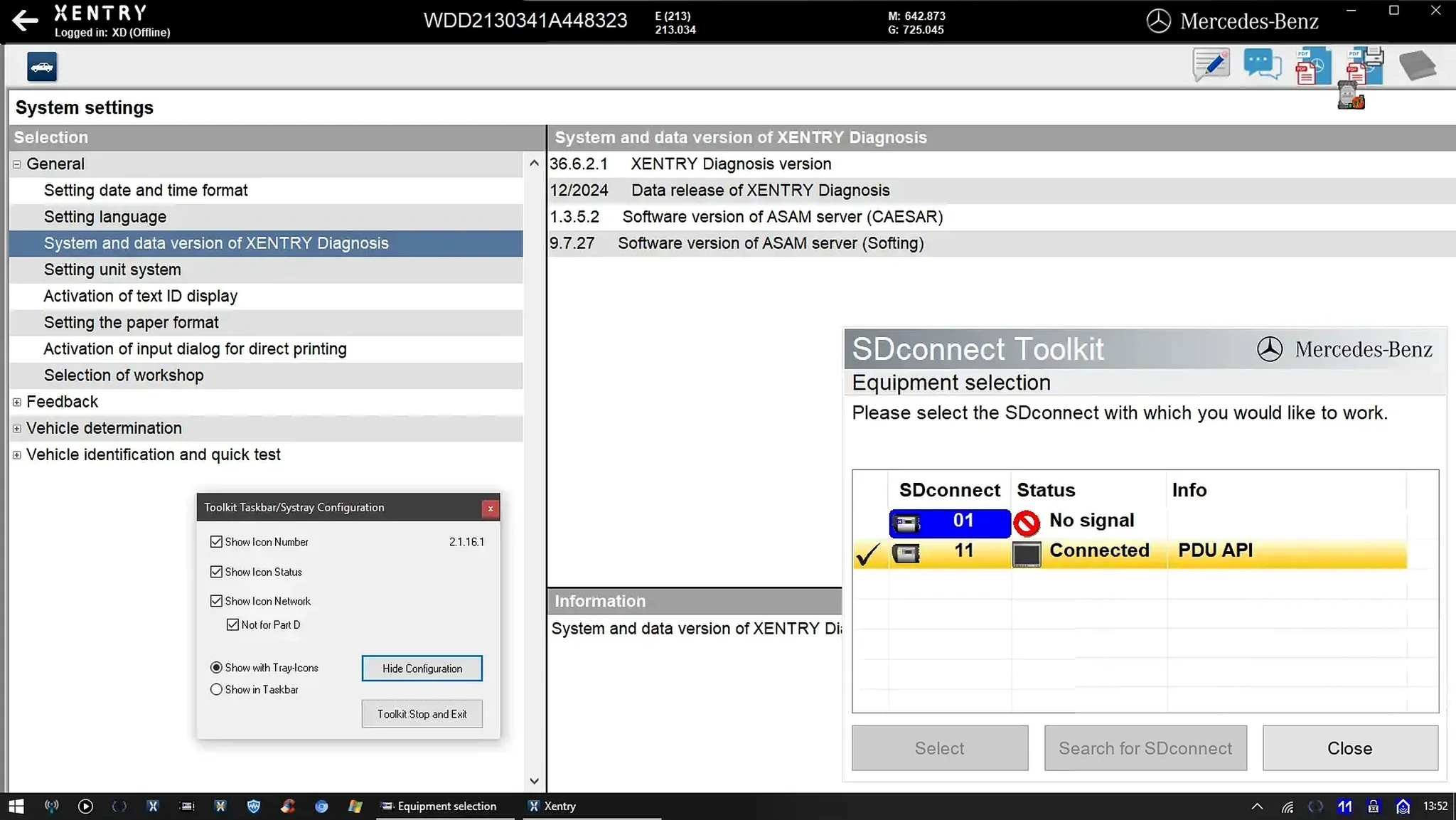
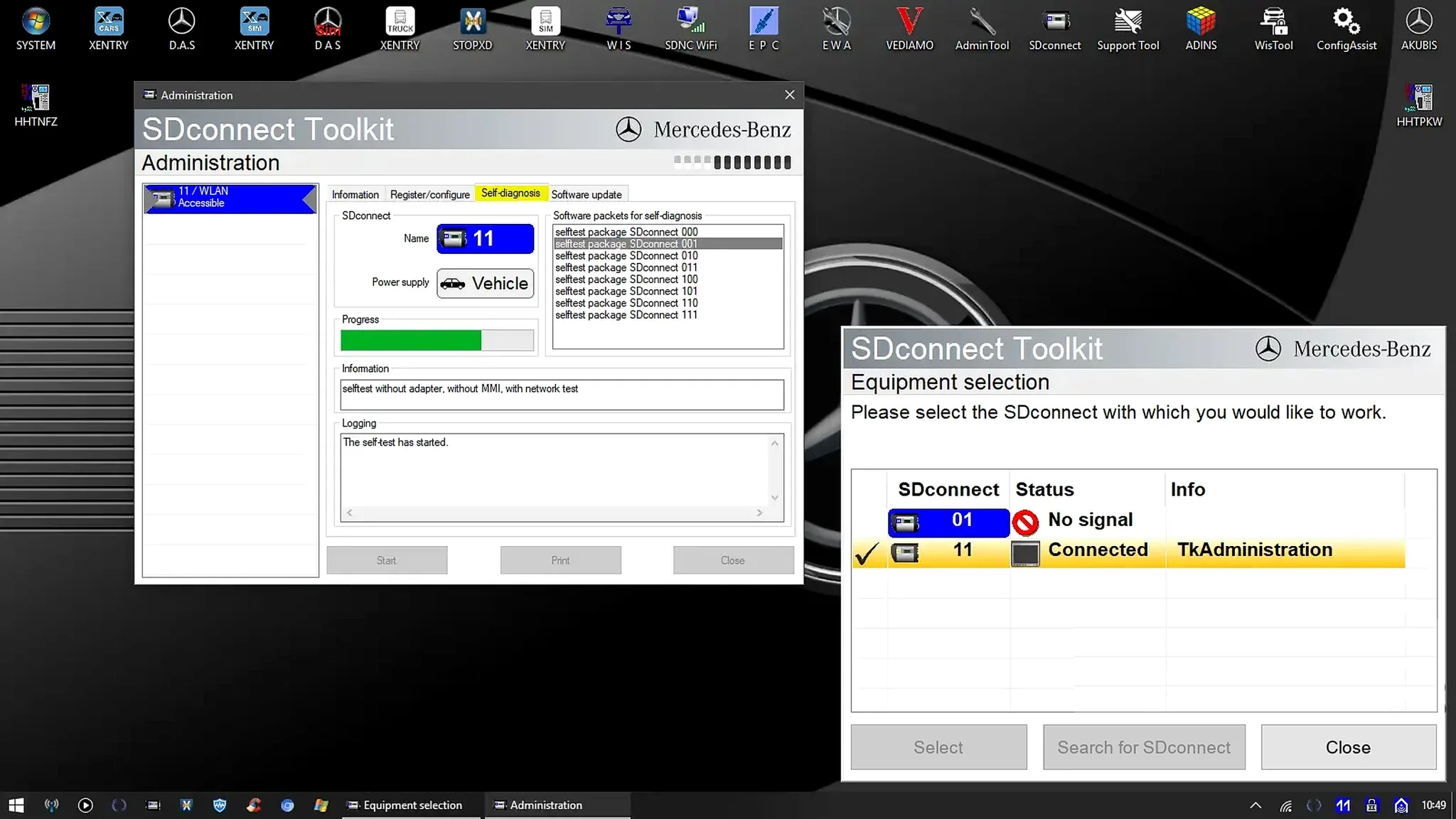
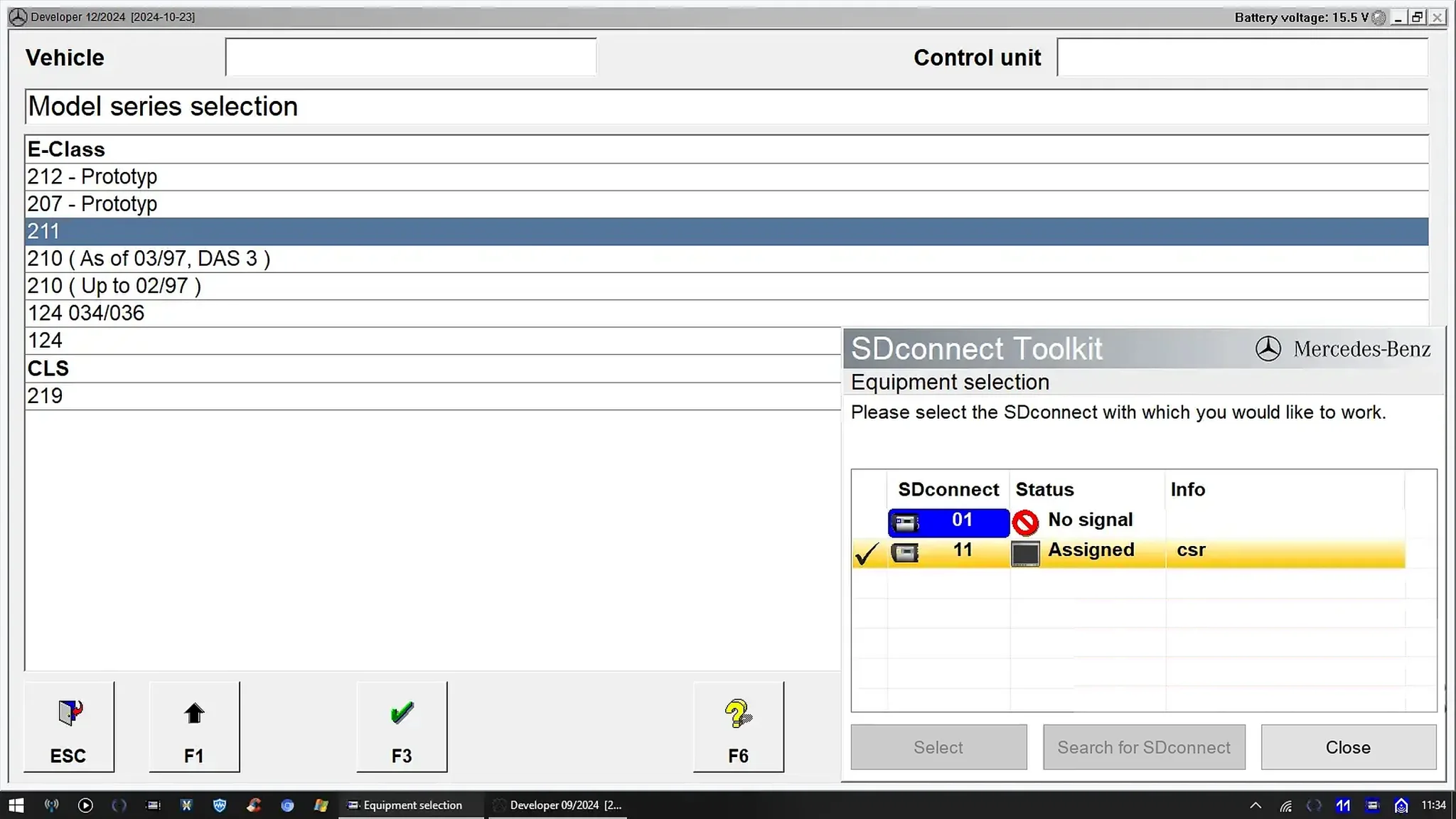
- Provides an equipment-selection window showing SDconnect units, their status, assignments and connection visibility.
- Includes integration paths for wireless operation with Vediamo.
- Supports wireless integration with DAS standalone when the corresponding local fixes are already present.
- Helps workshops switch quickly between diagnostic adapters and sessions.
Package contents
sdnc_toolkit_2.1.16.1_password.txt
SDNCtk21161.exe
Compatibility notes
- Intended for Mercedes-Benz diagnostic workstations running Xentry with XDOS OpenShell.
- Behavior varies with the Xentry build, OpenShell generation, SDconnect hardware and installed drivers.
- Wireless operation relies on the adapter configuration, WLAN settings and local network policies.
- DAS standalone integration requires the existing DAS standalone corrections and an appropriate configuration.
Basic usage
- Exit Xentry, Vediamo and DAS before starting installation.
- Launch the installer and follow the usual Windows setup prompts.
- Reopen Xentry OpenShell and confirm that SDconnect Toolkit equipment selection is available.
- For wireless operation, check the WLAN mode and make sure the adapter is visible before opening a diagnostic session.
- As optional cleanup, remove
unins000.datandunins000.exeonly after verifying that the Toolkit operates correctly.
Operating systems
- XDOS OpenShell Xentry workstations typically use 64-bit Windows 10 or Windows 11.
Minimum system requirements
- CPU: Dual-core processor at 2.0 GHz or faster.
- RAM: At least 4 GB; 8 GB recommended.
- Storage: 500 MB of free space.
- Network: Needed only for wireless SDconnect workflows.
- Admin rights: Recommended for installation and driver-level changes.
Disclaimer
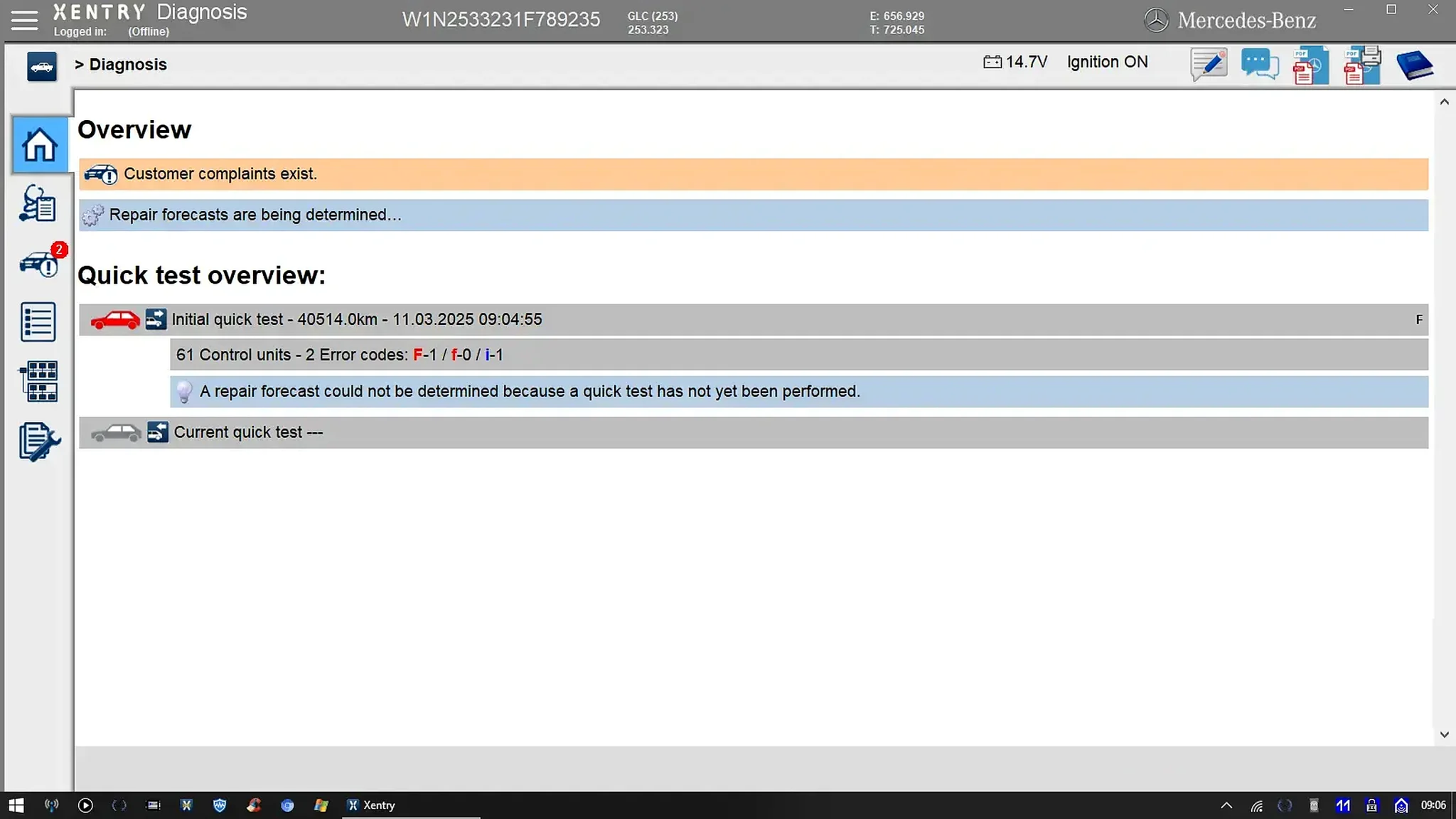
- Reference only: Filenames and screenshots are supplied to identify legitimate components.
- No affiliation: Product names and trademarks remain the property of their respective owners.
- Licensing and legality: Use requires valid licensing and compliance with local law. No bypass methods or keys are provided.
- Use at your own risk: Incorrect vehicle-diagnostic work can affect vehicle systems and warranties.
Technical Compatibility
Operating Systems
System Requirements
- Windows 10 or Windows 11, 64-bit, typically used for XDOS OpenShell Xentry workstations
- CPU: Dual-core 2.0 GHz or better
- RAM: 4 GB minimum, 8 GB recommended
- Storage: 500 MB free
- Network: Required only for wireless SDconnect workflows
- Administrator rights: Recommended for installation and driver-level changes
Screenshots
Related Software
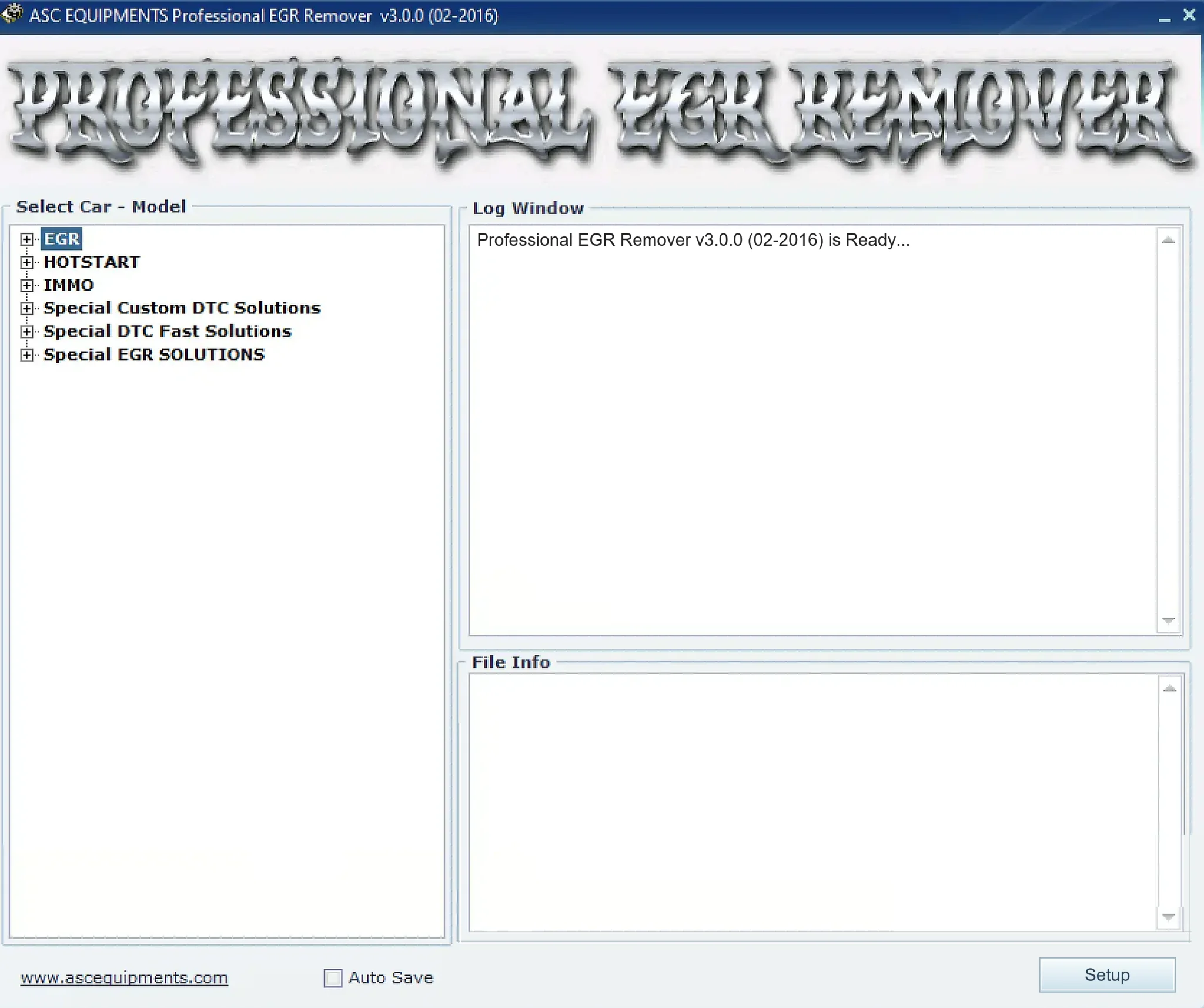
Windows calibration-file utility with manufacturer and ECU selection menus for EGR, flap, Hotstart, DTC and related service functions.

Detroit Diesel Diagnostic Link (DDDL) Full Suite 6.5 / 8.19 / DRS 6.31
v6.5 / 8.19 / DRS 6.31Detroit Diesel and Mercedes-Benz MBE workshop suite combining DDDL legacy and modern diagnostics, DRS reprogramming, live data, service tests and parameter functions.
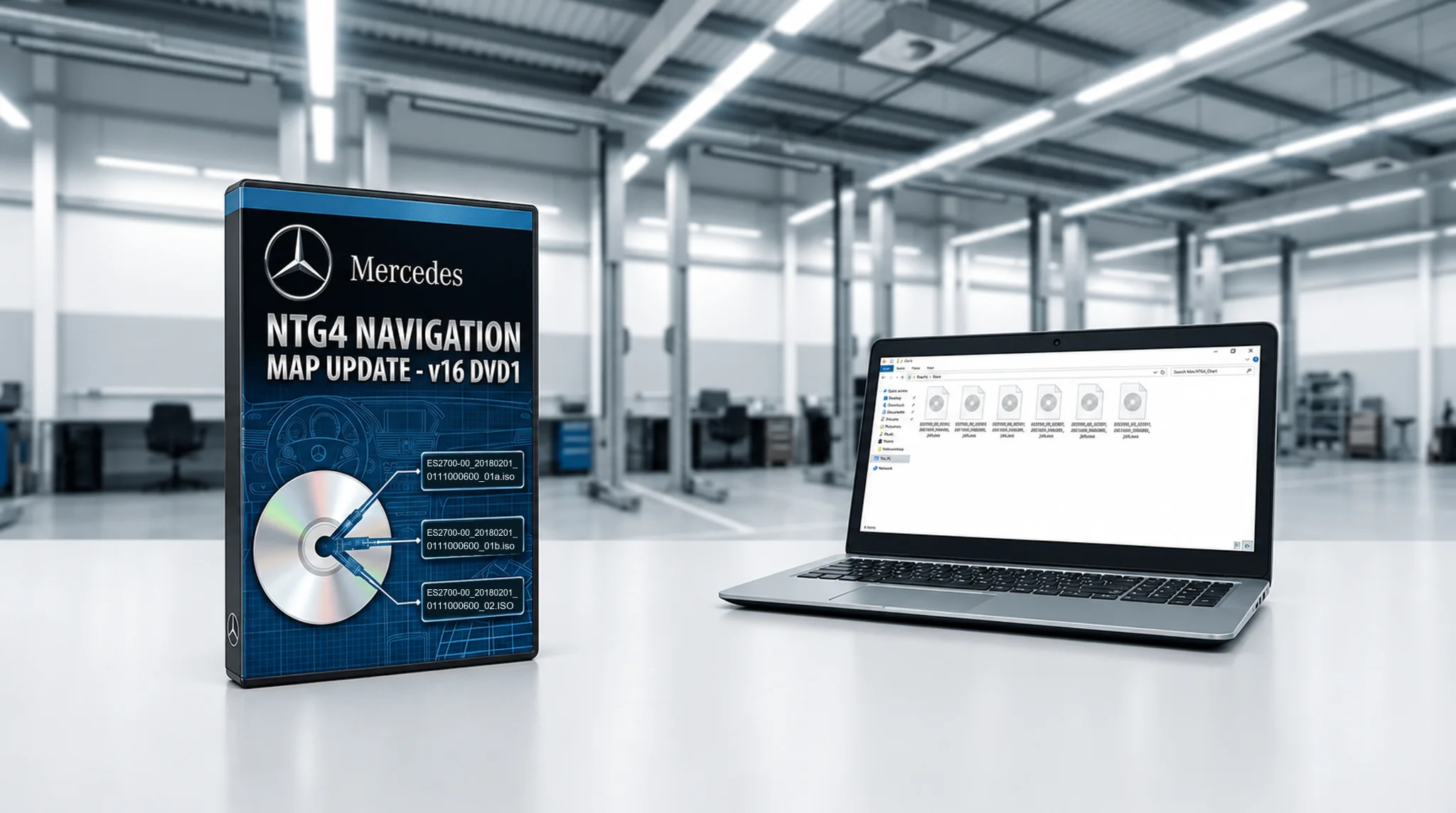
NTG4 v16 DVD1 split ISO package for preparing navigation map media for compatible Mercedes-Benz infotainment systems, with three original image filenames and media-handling guidance.

Mercedes-Benz telematics service disc image 2218270100.nrg for supported COMAND update workflows, with vehicle and head-unit applicability confirmed by VIN and the diagnostic prompt.
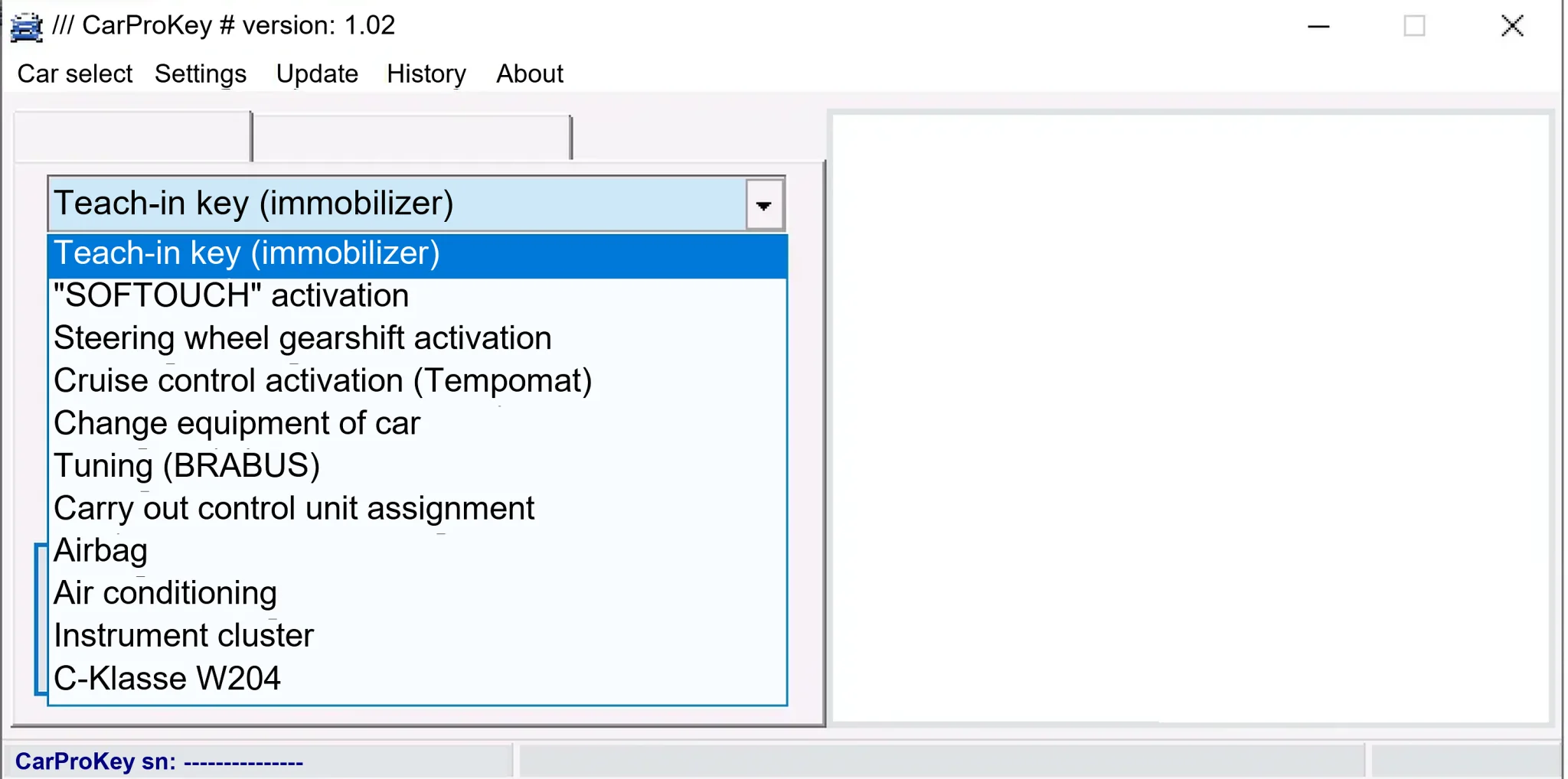
Windows service helper for selected Mercedes, Smart and Nissan Infiniti workflows, including authorized key teach-in, option coding and control-unit assignment.
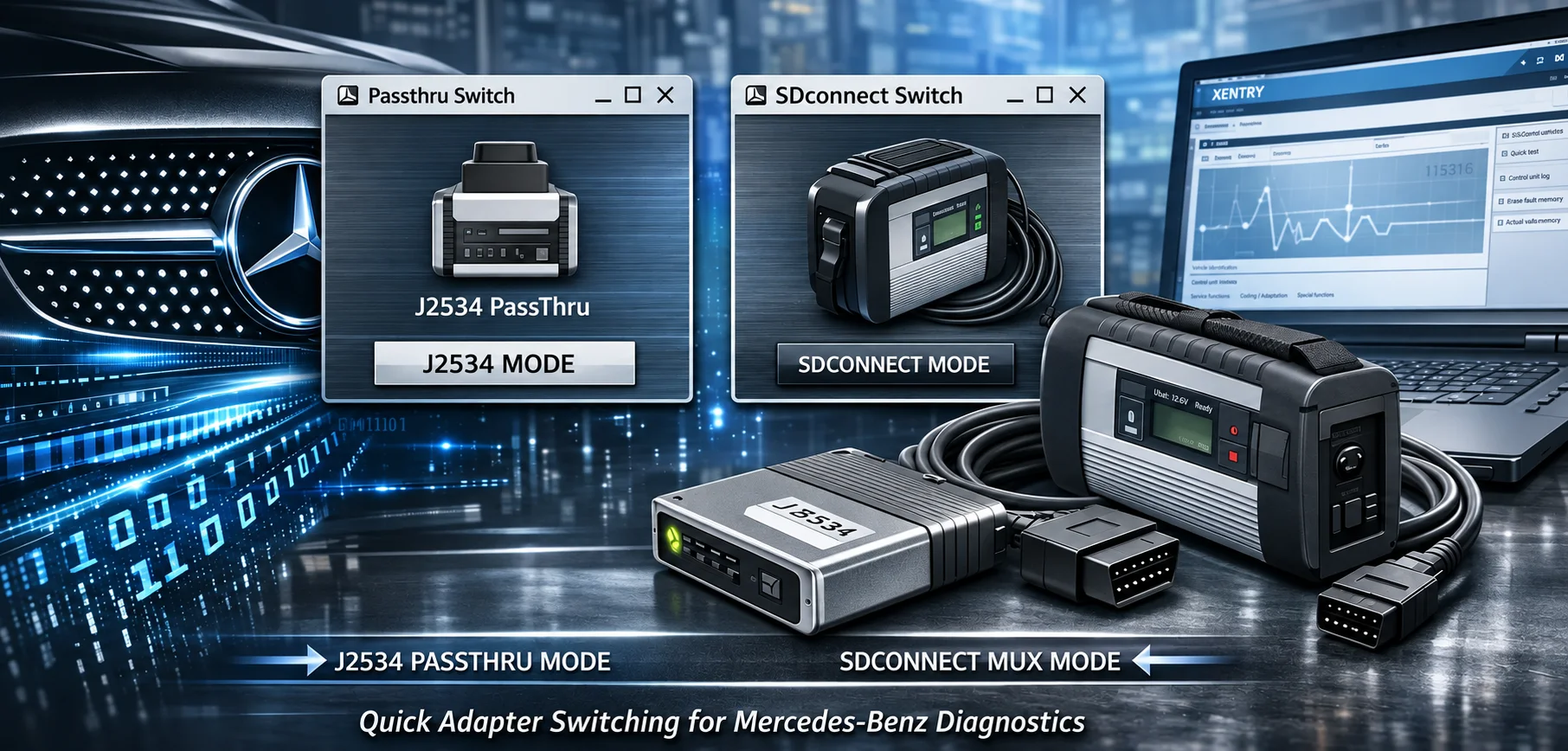
Lightweight Windows helpers for switching Xentry and DAS workstations between J2534 PassThru and SDconnect MUX communication profiles.