
SOFTWARE DATABASE / RELEASE RECORD
VERSION 1.1.3THINKDIAG 2 & EDIAG Plus Firmware Recovery – USB-C, No Programmer 1.1.3
Android USB OTG utility for restoring supported THINKDIAG 2 and EDIAG Plus adapter firmware, with full readback verification and Bluetooth checks.
Categories
Overview
TD2 / EDIAG Plus Recovery 1.1.3 is an Android application for restoring firmware on supported THINKDIAG 2 and EDIAG Plus diagnostic adapters, including units affected by interrupted or unsuccessful flashing.
The application communicates through the standard USB Type-C connector on the rear side of the circuit board. A USB OTG-capable Android phone or tablet provides the data connection and power. The supported recovery procedure does not require a Windows PC, J-Link, ST-Link, another external programmer or a separate 12V supply.
Recovery After Interrupted Firmware Flashing
A documented recovery test deliberately interrupted firmware writing, then reflashed the adapter through USB-C. The application reported that the written image matched a full readback. This demonstrates recovery of the tested unit with incomplete firmware; it does not establish identical results for every hardware revision or failure condition.
Main Features
- Direct USB-C recovery through the connector on the rear of the adapter circuit board.
- No J-Link, ST-Link or dedicated external programmer for the supported USB procedure.
- Power and communication supplied by the Android device through USB OTG; no separate 12V supply for the demonstrated recovery.
- Recovery of supported adapters after interrupted or failed firmware writing.
- An included TD2 Original V20.45 firmware image.
- An experimental TD2 USB Hybrid test image for USB diagnostics with compatible modified X-431 software.
- Selection and writing of a compatible complete custom firmware BIN.
- Automatic comparison of the written image with a full firmware readback.
- Bluetooth identification and firmware-information checks after recovery.
- Export of operation results and adapter information.
- An illustrated recovery guide with circuit-board references.
Firmware Options
1. TD2 Original — V20.45
The included original image restores the supported adapter to its standard firmware configuration. V20.45 is the firmware version, separate from application version 1.1.3.
2. TD2 USB Hybrid — Test
This experimental image is intended for USB diagnostic communication with a modified X-431 application. It requires the corresponding X-431 USB compatibility modification and is intended for testing. The interface labels this image as 1 MiB; that is a firmware-image size, not the Android application download size.
3. Custom Firmware BIN
Advanced users can choose a complete firmware BIN through Choose BIN. The image must match the target adapter hardware; selecting an arbitrary BIN does not establish compatibility.
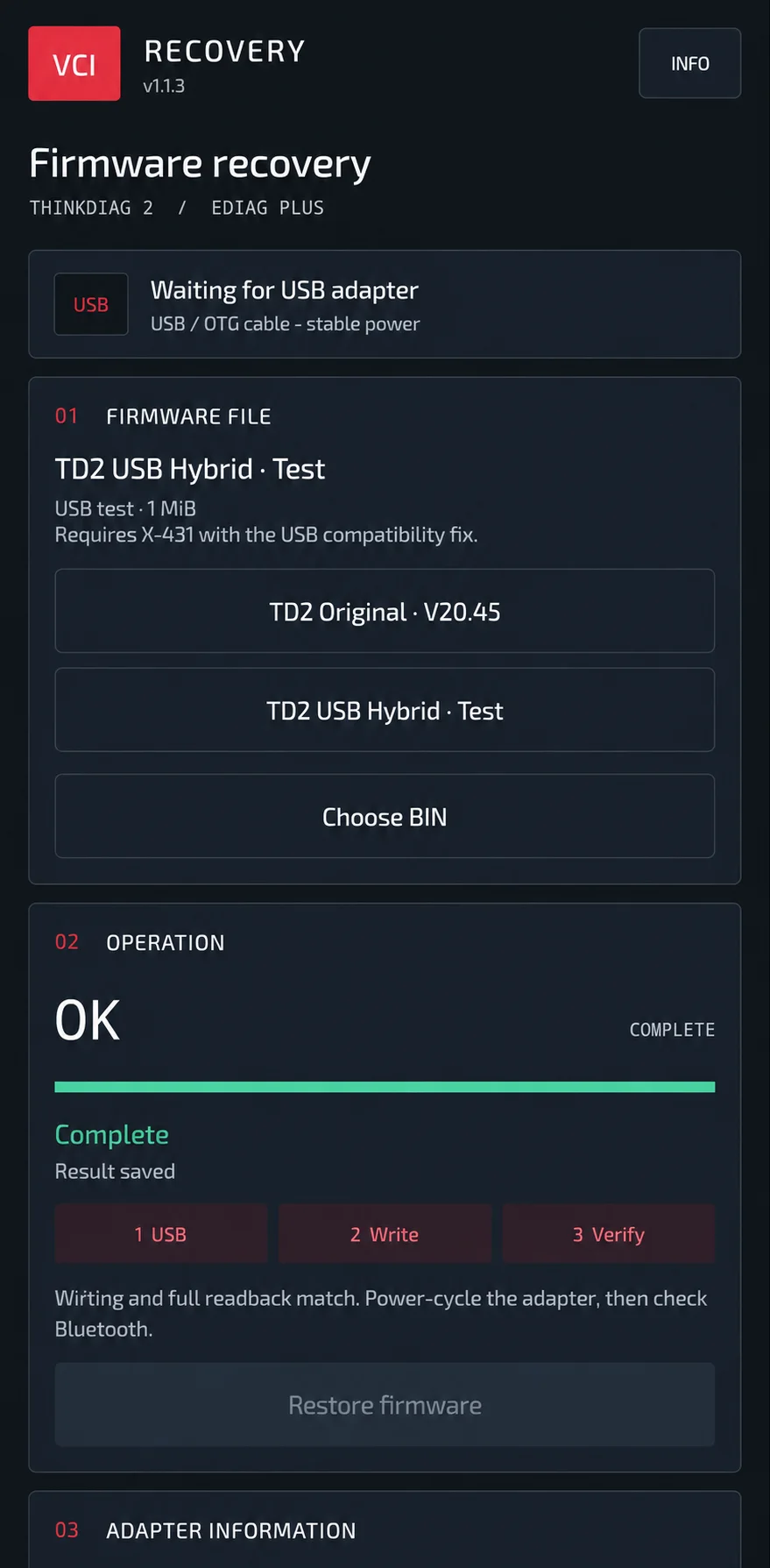
Firmware choices and recovery controls in TD2 / EDIAG Plus Recovery 1.1.3.
How to Restore the Firmware
- Connect the supported adapter to an Android phone or tablet with a USB OTG data cable using the rear USB Type-C connector.
- If recovery mode is required, follow the built-in instructions for the exact supported PCB revision.
- Open TD2 / EDIAG Plus Recovery.
- Choose TD2 Original, the USB Hybrid test image or a compatible complete custom BIN.
- Start the recovery operation and grant Android USB access when requested.
- Keep the connection and power stable until both firmware writing and full readback verification finish.
- Power-cycle the adapter after completion.
- Pair/connect through Bluetooth and check the restored adapter information.
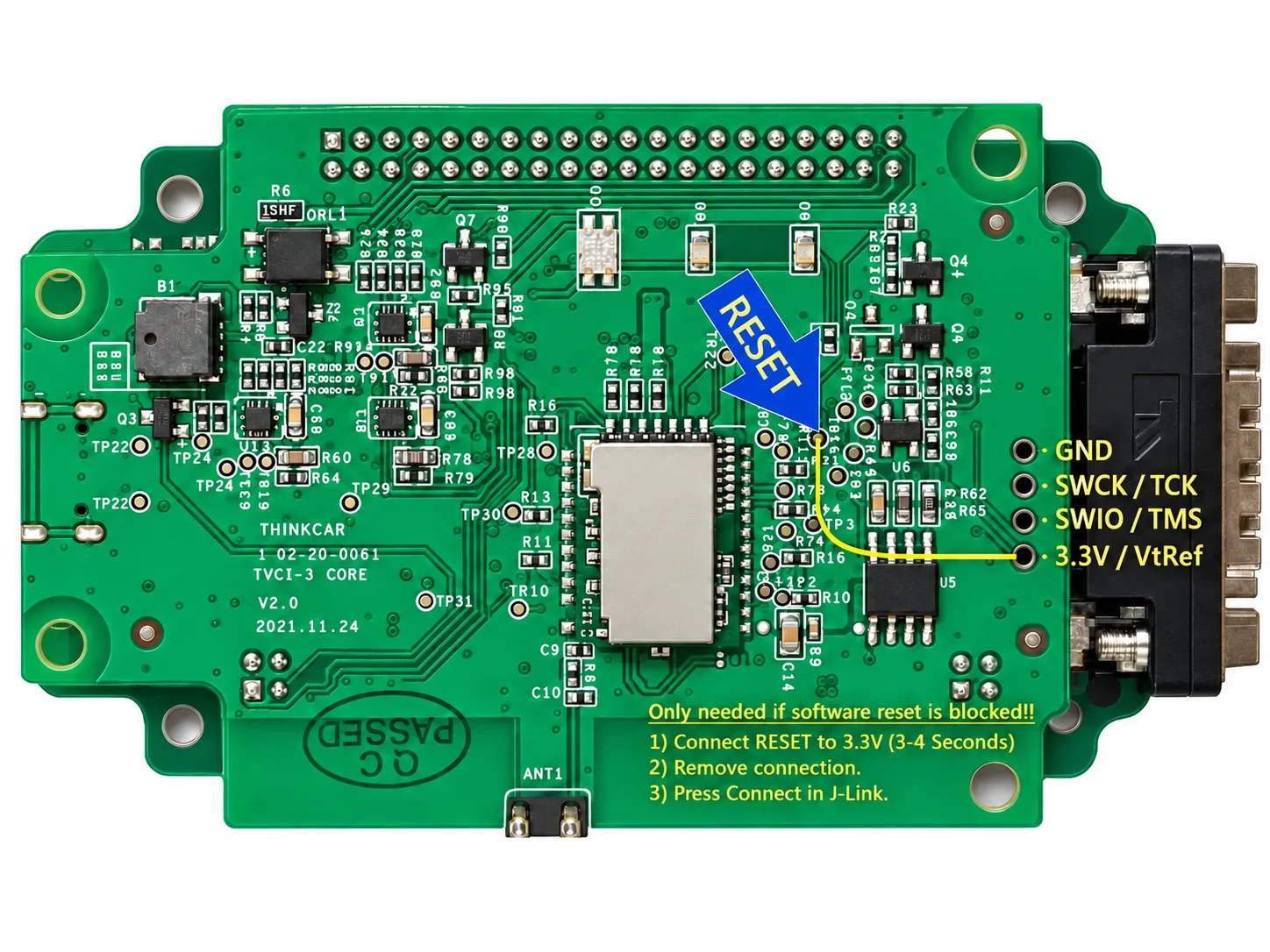
TVCI-3 CORE V2.0 reference board. The diagram includes J-Link annotations; the supported USB recovery procedure does not require a J-Link programmer.
Bluetooth Adapter Information
After recovery, the application can check and display:
- Adapter serial number
- Bootloader version
- Main software version
- Diagnostic module version
- Device functions version
- Supply voltage reported by the adapter
The information and operation results can be exported for later reference. The supply-voltage field displays data reported by the adapter; it is not an independent voltage measurement. The illustrated readouts are examples from a device check, not required firmware versions for every supported unit.
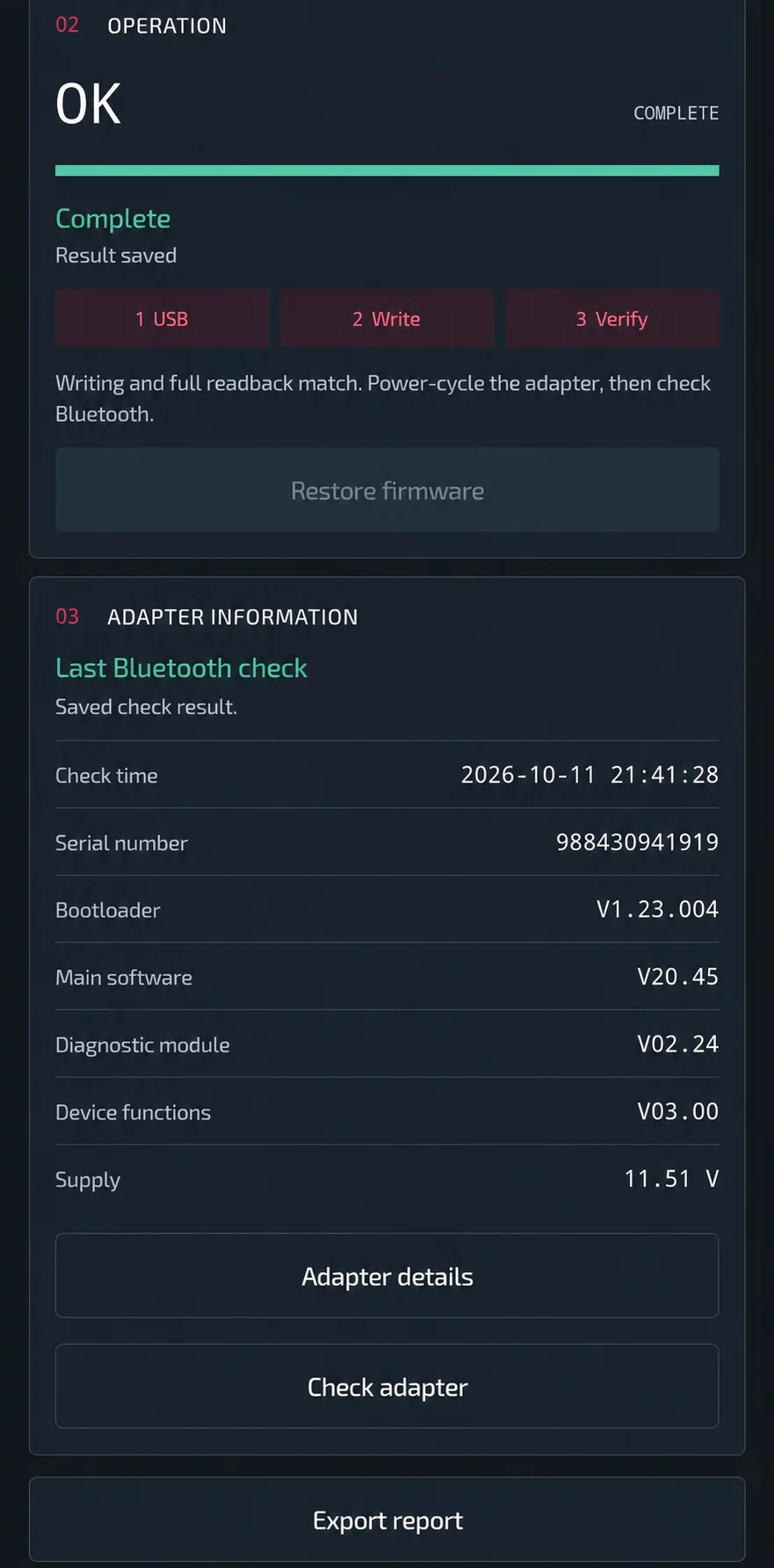
Completed write/readback check and adapter-reported identification, firmware and supply-voltage fields.
Built-in Hardware Recovery Guide
The illustrated guide explains recovery-mode entry and USB connection. Its PCB reference is TVCI-3 CORE V2.0, with recovery-related points marked. Other revisions can have different layouts and recovery requirements.
The guide asks users to wait for the adapter to be detected in recovery mode. If it is not detected, check OTG support, the data cable and power instead of repeatedly attempting erasure. Android USB permission is requested when starting the write operation.
The board illustration also labels RESET, GND, SWCK/TCK, SWIO/TMS and 3.3V/VtRef connections and includes a J-Link reference annotation. Those annotations do not make a J-Link connection necessary for the supported USB recovery workflow. Use the instructions matching the board and recovery method rather than combining different procedures.
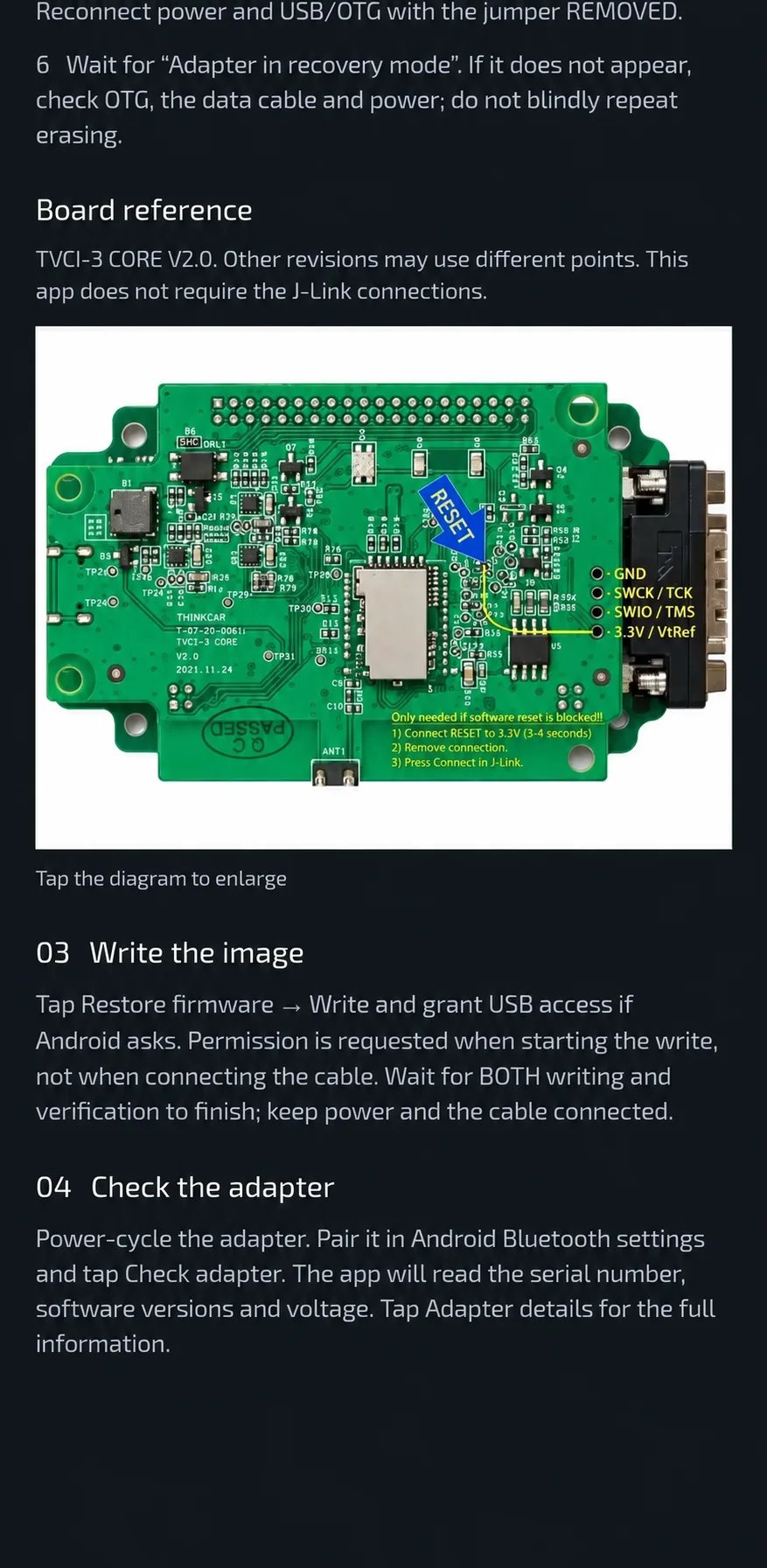
Built-in illustrated recovery guide and TVCI-3 CORE V2.0 reference.
Requirements
- Android smartphone or tablet with USB OTG support
- Compatible USB OTG data cable or adapter
- Supported THINKDIAG 2 or EDIAG Plus diagnostic adapter
- Access to the rear USB Type-C connector on the adapter PCB
The minimum Android version and supported CPU architectures are not documented. Confirm USB OTG support, the exact adapter/PCB revision and the chosen firmware before starting.
Important Notes
- A separate 12V supply is not required for the demonstrated USB recovery procedure. This statement applies to recovery, not to vehicle diagnostic power requirements.
- Keep USB data and power connected throughout writing and verification.
- Use the recovery-mode instructions for the exact PCB revision.
- USB Hybrid is experimental and needs the matching X-431 USB compatibility modification.
- Write only a firmware image compatible with the adapter hardware.
This is a standalone Android adapter-firmware recovery utility. Firmware readback verification checks the written data against the selected image; it does not certify a custom image or prove every diagnostic function on a vehicle. Use it only on adapters you own or are authorized to repair.
Technical Compatibility
Operating Systems
File Formats
System Requirements
- Android smartphone or tablet with USB OTG support
- Compatible USB OTG data cable or adapter
- Supported THINKDIAG 2 or EDIAG Plus diagnostic adapter
- Access to the rear USB Type-C connector on the adapter PCB
- Minimum Android version and supported architectures are not documented
- Firmware image compatible with the exact adapter hardware
Screenshots
Related Software
Offline Windows reference and calculation tool for supported dashboard, body-module and EEPROM/MCU mileage profiles, with memory information, byte locations and repair calculations.
Offline Windows reference tool for Bosch ECU part numbers, controller families and OE cross-references, with exact, wildcard, prefix and binary-dump identifier searches.
Windows map and axis detection for supported Siemens PPD/SID full BDM binaries, with table and 3D views, DTC analysis and XDF/A2L definition export.
Offline Windows checksum inspection and correction for recognized Bosch and Sagem petrol ECU binaries, with eight supplied modules and All, Bad and Fixed counters.
Offline Windows utility for extracting calibration data from compatible New Genius/K-Touch GEN_FILE containers, with a stated 4 MB input limit.
Offline Windows x64 utility for recalculating segment checksums in compatible GM calibration BIN files and saving a separate corrected copy.