
SOFTWARE DATABASE / RELEASE RECORD
VERSION 1.0.0.1DAS Smart Calculator - Mercedes-Benz TAN Code Utility 1.0.0.1
Offline Windows TAN-code companion for supported Smart DAS key teach-in, SOFTOUCH, steering-wheel gearshift, Tempomat, equipment and BRABUS procedures.
Categories
Vehicle references
Overview
DAS Smart Calculator is a compact offline Windows companion for authorized Smart configuration procedures in Mercedes-Benz DAS. It uses the request data from the diagnostic procedure to calculate a TAN response for the selected function. The calculator does not communicate with the vehicle, replace DAS or Xentry, or program keys independently.
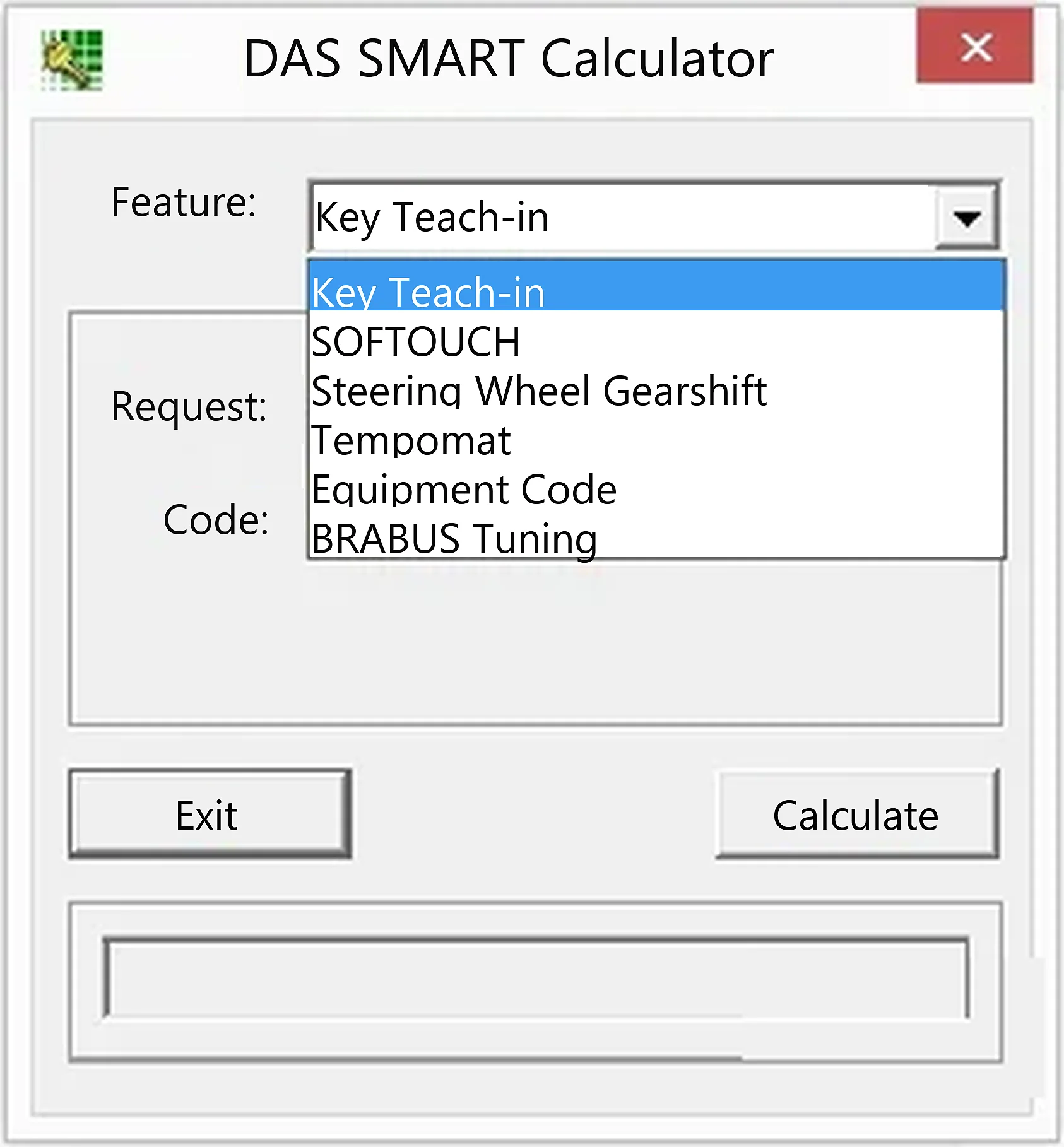
Available Calculator Functions
- Key Teach-in for the matching DAS key-learning procedure.
- SOFTOUCH activation when supported by the vehicle and diagnostic procedure.
- Steering Wheel Gearshift activation.
- Tempomat / cruise-control activation.
- Equipment Code calculation for the supported DAS configuration workflow.
- BRABUS Tuning code calculation.
These are the selections visible in the interface. Generating a response does not establish that the equipment is installed, that an option is permitted or that the control-unit software supports it.
Vehicle and Diagnostic Compatibility
The utility is associated with the older Mercedes-Benz DAS environment for Smart configuration and special functions. Workflows are commonly associated with Smart chassis 450, 451, 452 and 454, but those references are not a guarantee for every vehicle. Availability depends on production date, market, DAS data release and control-unit variant. Confirm that the active DAS screen requests the same code type supported by the selected calculator function.
This is not a general Mercedes SCN calculator, a replacement for modern Xentry online services or a universal immobilizer application. If DAS does not offer the matching request-code procedure, a value from another calculator menu is not a valid substitute.
Required Software and Hardware
- A working Mercedes-Benz DAS installation with the relevant Smart vehicle data.
- A compatible diagnostic multiplexer with correctly installed communication drivers.
- A Windows computer able to run the legacy portable executable.
- The exact VIN, request code or other information required by the active DAS procedure.
- Stable vehicle voltage for subsequent coding or key teach-in.
The calculator is documented as a single unsigned native Windows executable whose metadata identifies a Smart calculator. DAS is not included. Check the program locally in an isolated workshop environment before use; exact supported Windows versions and minimum hardware requirements are not established.
Recommended TAN-Code Workflow
- Connect through DAS and identify the vehicle and control unit using the normal diagnostic procedure.
- Open the authorized special function, confirm the operation and record the request displayed by DAS.
- Select the exact corresponding calculator feature; do not substitute a similarly named function.
- Enter the requested information carefully and calculate the response.
- Return that response to the same DAS session and follow its guided steps.
- Check the final status, switch the ignition only when instructed and verify the resulting function.
If DAS rejects a result, compare every request character, the selected function, chassis, diagnostic data version and whether leaving the screen changed the request. Avoid repeated guessing, which can lock or complicate a security-related procedure.
Safety and Authorization
Key teach-in and equipment activation change vehicle security or configuration. Verify ownership and service authorization first. Keep customer VINs, request strings and generated TANs private. Record original coding and installed hardware so the previous configuration can be restored if the requested option does not work correctly.
Cruise control, steering-wheel gearshift and other equipment-dependent functions need the appropriate physical components and control-unit coding. A valid TAN enables the relevant diagnostic step; it does not add missing hardware or establish that a vehicle is roadworthy.
Troubleshooting Checklist
- Confirm that the code request comes from the matching DAS procedure rather than an unrelated Xentry or third-party screen.
- Check the selected feature and whether the request is VIN-based or session-based.
- Verify that reconnecting or reopening the function has not refreshed the request.
- Confirm Smart chassis, production date and the relevant control-unit identity.
- Provide stable battery support before the final coding or key procedure.
For support, provide the chassis family, DAS data release, selected function and a redacted error description. Do not publish active request strings, VINs or key data.
Package Notes
The documented archive contains one executable, with no additional installers, communication drivers or diagnostic databases. Preparation notes describe static inspection without running the program. ECUDB has not independently executed or certified it, and no malware-clean claim is made.
Technical Compatibility
Operating Systems
System Requirements
- Windows computer capable of running a legacy portable native executable; exact supported versions and minimum hardware are unspecified.
- Working Mercedes-Benz DAS installation and relevant Smart vehicle data, supplied separately.
- Compatible diagnostic multiplexer and correctly installed communication drivers for the DAS session.
- Exact VIN, request code or other input specified by the active DAS procedure.
- Stable vehicle power for subsequent coding or key teach-in.
- An isolated workshop environment for checking the unsigned calculator executable.
Screenshots
Related Software
Windows automotive key database and cutting-control software for compatible Miracle machines, with profile search, bitting entry, blade preview and saved cutting jobs.
Offline Windows reference and calculation tool for supported dashboard, body-module and EEPROM/MCU mileage profiles, with memory information, byte locations and repair calculations.
Offline Windows renew and virgin dump editor for selected Mercedes-Benz Bosch ME, EDC15 and Siemens SIM4 ECU profiles, with memory-specific processing and connector diagrams.
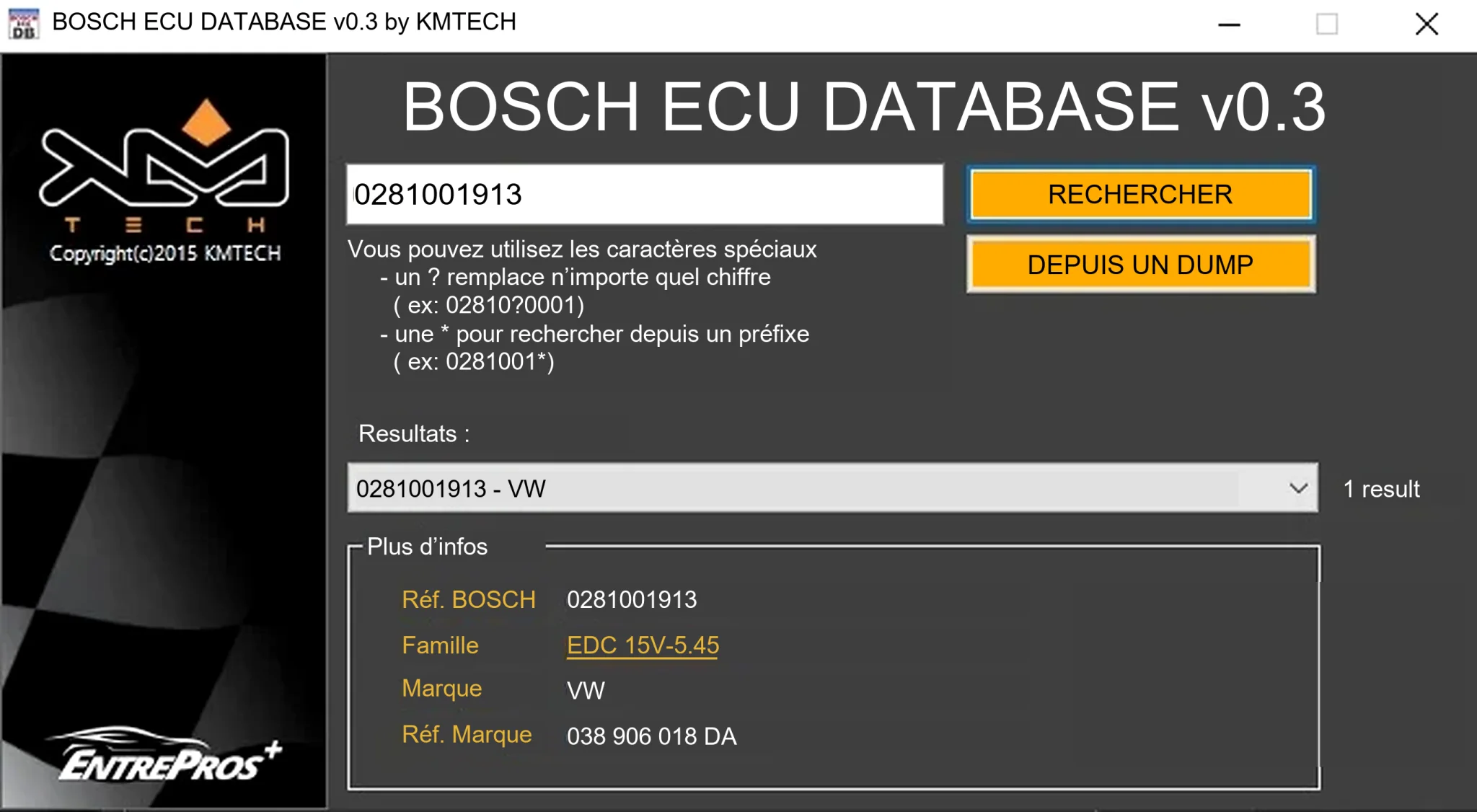
Offline Windows reference tool for Bosch ECU part numbers, controller families and OE cross-references, with exact, wildcard, prefix and binary-dump identifier searches.
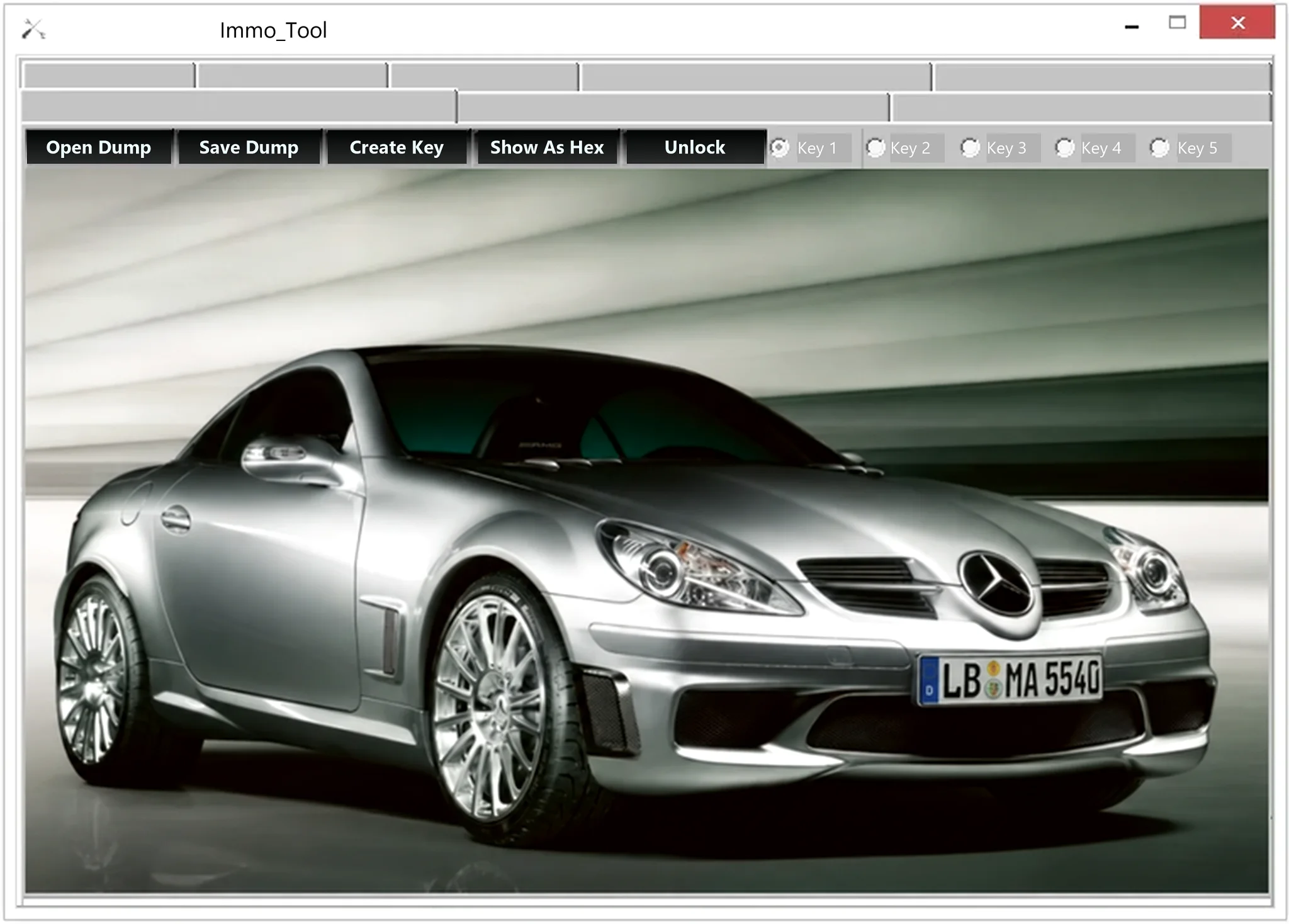
Mercedes and VAG Immobilizer Tool
vUnspecifiedPortable Windows dump-file utility for supported Mercedes and VAG immobilizer data, key positions, key-record creation and separate infrared workflows.
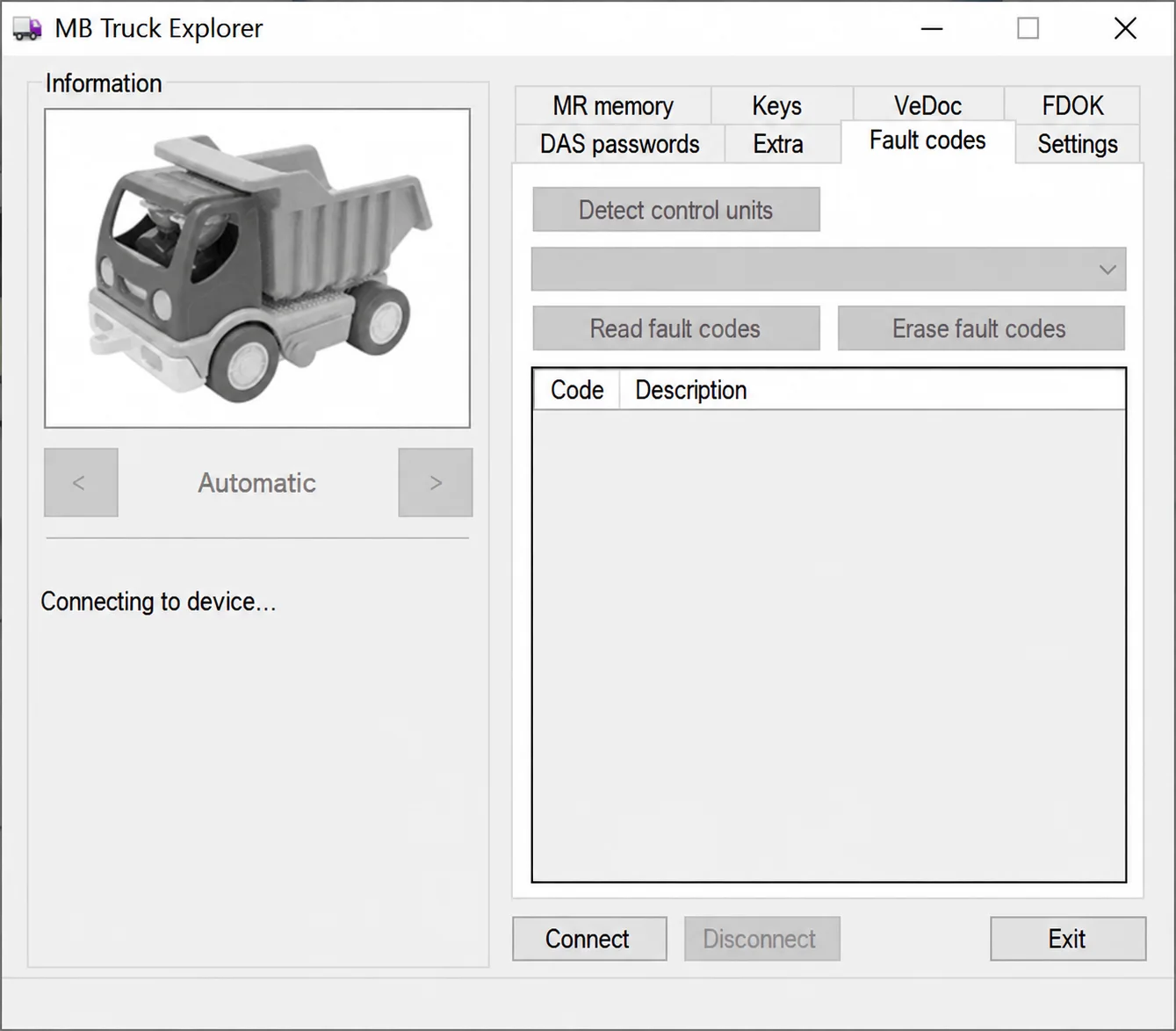
Legacy Windows heavy-vehicle service software for compatible VEI hardware, with licensed MR/PLD memory, key, VeDoc, FDOK, DAS and fault-code functions.